
Playwright MCP: How to Use AI for Browser Automation, Testing, and Debugging
Can AI Help You Test a Website?
Imagine that you are testing an online shopping website.
You need to open the website, search for a product, add it to the cart, enter delivery information, and check whether the order summary displays the correct amount.
You could perform these actions manually. You could also write an automation script that performs the same steps every time.
But what if you want an AI assistant to explore the website and interact with its browser?
This is where Playwright MCP becomes useful.
Table of Contents
TogglePlaywright MCP allows compatible AI applications to interact with websites through browser automation tools powered by Playwright. You can describe a task in natural language, and the AI application can use the available tools to navigate pages, inspect elements, enter information, and check results.
For example, you could ask an appropriately configured AI assistant to open a demo shopping website, add a product to the cart, and verify that the product appears in the cart.
The assistant still needs the correct tools, suitable instructions, and a working browser environment. It can also make mistakes, so important results must be checked.
In this guide, you will learn how Playwright MCP works, when to use it, how to configure it, and how to approach real browser automation problems.
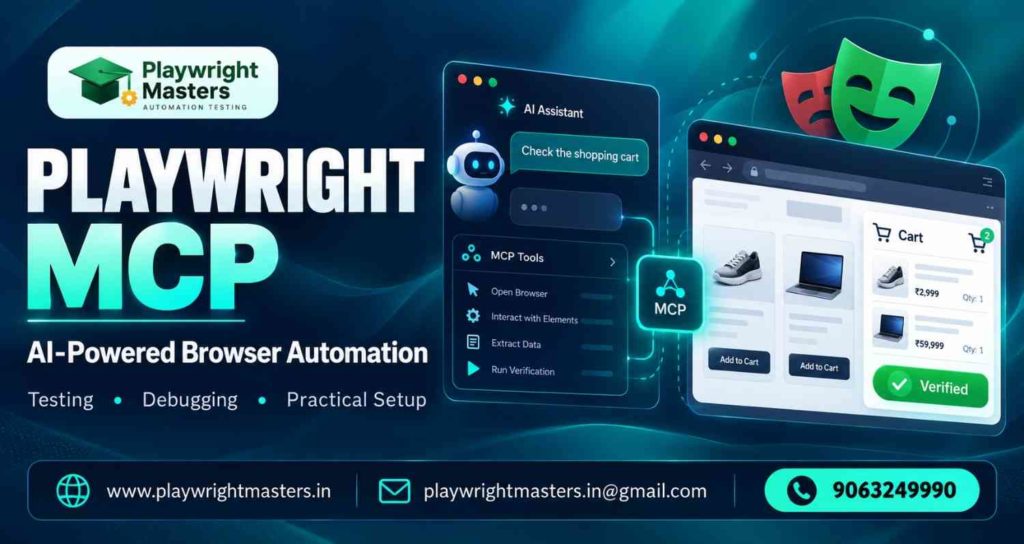
What Is Playwright MCP?
Playwright MCP is a server that makes Playwright browser automation capabilities available to compatible AI applications through the Model Context Protocol, commonly called MCP.
To understand this, think of a website as a shop.
The website is the shop, the browser is the place where you interact with it, and Playwright provides tools for performing browser actions.
The AI application receives your request. The MCP server provides tools that allow the application to interact with the browser.
For example, you might ask:
“Open the contact page and identify which fields are required.”
The AI application can request the page to be opened and inspected. It can then examine the available page information and report which fields appear to be required.
Whether the result is correct depends on the page structure, the information exposed by the browser tools, and the AI application’s interpretation.
What Makes Playwright MCP Different?
Traditional browser automation often begins with code written by a developer.
With Playwright MCP, a compatible AI application can select and call browser tools based on a user’s request.
This is useful when you want to explore a page, investigate a problem, or perform a browser task without manually writing every interaction first.
However, Playwright MCP does not automatically turn every request into a reliable software test. You still need to define the expected result and verify whether the website behaves correctly.
How Playwright MCP Helps an AI Understand a Website
A browser page contains more information than a person can see at first glance.
A button might have a label, an input field might have an accessible name, and a form might contain several related controls.
Playwright MCP can provide structured accessibility snapshots that describe elements on a page.
Consider a login page containing:
- A heading named “Customer Login”
- A textbox named “Email address”
- A textbox named “Password”
- A button named “Sign in”
An AI application can use this structured information to identify the relevant controls.
It can then request an action on the appropriate element.
This is different from simply guessing where a button appears on the screen.
Does Playwright MCP Always Need Screenshots?
No. Its standard browser interaction can use structured accessibility information instead of relying entirely on screenshots.
That is an important distinction.
A screenshot shows the visual appearance of a page. A structured snapshot can describe the page’s accessible elements and their names.
Both approaches have value, but neither guarantees that every page will be understood correctly.
For example, a custom dropdown with poor accessibility information may be difficult to identify. A visually obvious button may have an unclear accessible name.
When this happens, the workflow may need a fresh page snapshot, additional inspection, or another suitable interaction method.
When Should You Use Playwright MCP?
Playwright MCP is particularly useful when the task involves browser interaction and an AI application can benefit from choosing actions dynamically.
Here are four practical situations.
Situation 1: Exploring an Unfamiliar Website
Suppose you have joined a project and need to understand its registration process.
You can ask an AI assistant to access the sign-up page, review the fields provided, and explain the registration process step by step for new users.
This can help you investigate the workflow before deciding what needs to be tested.
Situation 2: Investigating a Website Problem
Suppose a contact form does not display a success message after submission.
An AI assistant using the available browser tools may inspect the form, attempt a controlled submission, examine the resulting page, and help identify possible causes.
It should not automatically conclude that the problem is fixed simply because it clicked the Submit button.
The result must be checked.
Situation 3: Exploring Test Scenarios
Suppose you are testing an online course website.
You may want to explore these scenarios:
- A visitor opens a course page.
- The visitor checks the course details.
- The visitor opens the enquiry form.
- The visitor submits valid test information.
- The website displays a confirmation.
Playwright MCP can help explore the workflow and identify possible test cases.
You can then convert important scenarios into repeatable automated tests.
Situation 4: Supporting Developer Debugging
Suppose a page loads, but a particular feature does not work.
Depending on the enabled capabilities, Playwright MCP can provide access to browser console information and network requests.
This information may help a developer investigate JavaScript errors, failed requests, or other problems.
The tools help collect evidence. They do not replace technical investigation.
Playwright MCP vs Playwright Test vs Playwright CLI
One common source of confusion is treating these technologies as interchangeable.
They are related, but their main purposes differ.
Technology | Main purpose | Best starting point |
Playwright MCP | Gives compatible AI applications access to browser automation tools | AI-assisted browser interaction and exploration |
Playwright Test | Provides a framework for writing and running automated tests | Repeatable functional and regression testing |
Playwright CLI | Supports browser workflows through command-line tools | Tasks suited to command-line automation |
Example: Testing a Login Page
Imagine that you need to check a login page.
With Playwright MCP, an AI assistant can inspect the page and interact with its fields through available tools.
With Playwright Test, you can write a test that enters test credentials and checks whether the expected result appears.
Playwright CLI allows you to carry out browser-related operations through its built-in command-line tools.
These approaches can complement one another.
For example, you could use AI-assisted exploration to discover an issue and then write a Playwright Test script that checks the issue automatically whenever the application changes.
Practical recommendation: Use Playwright MCP to support AI-assisted exploration and interaction. Use Playwright Test when you need clearly defined, repeatable checks that can run as part of a testing process.
How to Set Up Playwright MCP
Before you begin, ensure that your system and required tools are properly set up.
You need:
- Node.js 20 or newer, as specified by the official getting-started documentation.
- An AI application that supports MCP server connections.
- Permission to install and run the package.
- A demo website or test application for your first exercise.
You do not need to begin by building a complete automation framework.
Start with a small task that lets you confirm whether the connection works.
Step 1: Choose an MCP-Compatible Application
Choose an application that supports MCP server configuration.
The installation process differs between applications.Some tools provide a simple installation interface, whereas others need you to use a configuration file or run a specific command.
Follow the instructions for your chosen application.
Step 2: Add the Playwright MCP Server
A standard server configuration looks like this:
{
“mcpServers”: {
“playwright”: {
“command”: “npx”,
“args”: [
“@playwright/mcp@latest”
]
}
}
}
This configuration tells the MCP client how to launch the Playwright MCP package.
Use the correct configuration location and format for your application. Do not assume that every AI client stores its settings in the same file.
Step 3: Connect to the Server
Save the configuration and refresh or restart the client if necessary.
Check whether the client reports that the Playwright MCP server is connected.
If the connection fails, investigate the error before trying to automate a website.
Step 4: Run a Simple Browser Task
For your first exercise, use the public Playwright TodoMVC demo.
Ask your AI assistant to open:
https://demo.playwright.dev/todomvc
Then ask it to add a task called “Prepare testing checklist.”
Finally, ask it to check whether the new task appears.
This single exercise tests several parts of the workflow:
- The MCP server can start.
- The client can request browser actions.
- The browser can open the website.
- The page can be inspected.
- An element can be identified.
- The task can be entered.
- The resulting page can be checked.
If the task does not appear, investigate the failed step instead of assuming that the setup is correct.
A Practical Example: Find and Verify a Contact Form
A contact form is a useful practice exercise because it has a clear purpose and an expected result.
Imagine that you are checking a demo website with these fields:
- Full name
- Email address
- Message
- Submit button
Your task is to determine whether the form accepts valid test information and displays an appropriate confirmation.
Step 1: Inspect the Form
Ask the AI assistant to open the demo page and identify the form fields.
It should examine the webpage first to determine which elements are appropriate to interact with.
Step 2: Use Test Information
Provide safe sample information, such as:
- Full name: Test User
- Email address: test@example.com
- Message: I am testing the contact form.
Use this information only in an appropriate test environment.
Do not submit fabricated information to a real business or send unsolicited messages.
Step 3: Submit the Form
Ask the assistant to enter the sample values and submit the form.
The website may validate the fields, reject invalid data, or display a confirmation message.
Step 4: Check the Actual Result
Ask the assistant to inspect the page after submission.
A useful result check asks:
- Did the page show a confirmation?
- Did validation errors appear?
- Did the page remain on the form?
- Was there an unexpected error?
The correct result depends on how the test website is designed.
Step 5: Record the Finding
Document what happened, what you expected, and any difference between the two.
For example:
Expected: A successful submission should display a confirmation message.
Observed: The page displayed an error after submission.
Next step: Inspect the visible message and relevant browser information to determine why the submission failed.
This approach turns a vague observation into a useful testing finding.
How to Make Browser Automation More Reliable
An automation task can fail even when the server is connected correctly.
The problem may be in the instructions, the website, the chosen element, or the expected result.
Use the following practices to improve the workflow.
Inspect the Page Before Acting
Do not ask the assistant to click an element without first identifying the relevant control.
A fresh snapshot can help establish the current page state.
This is especially important after navigation, form submission, or a change in displayed content.
Give One Clear Goal at a Time
Compare these requests:
Unclear: “Test everything on this website.”
Clear : Navigate to the registration page, examine the available input fields, and list the fields that users must complete before submitting the form.
The second request defines a specific outcome.
For a complex task, divide the work into smaller stages.
Verify Results Instead of Assuming Success
Clicking a button does not prove that the intended action succeeded.
If you are testing a form, inspect the confirmation or validation message. If you are testing a cart, check whether the correct item appears.
Every important action should have a suitable result check.
Separate Exploration from Repeatable Testing
Exploration helps you discover how an application behaves.
Repeatable tests check whether known behavior continues to work.
After identifying a key workflow, you can turn it into a Playwright Test case by adding clear assertions to verify that each step works as expected.
This makes the result easier to reproduce and investigate.
Common Playwright MCP Problems and Their Solutions
When Playwright MCP does not work as expected, identify which part of the workflow failed.
Problem | Possible reason | Recommended action |
Server does not start | Incorrect configuration or missing runtime | Check the configuration and Node.js installation |
Client cannot connect | Server process failed or client settings are incorrect | Inspect connection status and startup output |
Browser does not open | Browser launch or environment problem | Check the server output and browser configuration |
Expected field cannot be found | Page structure or accessible names differ | Inspect the current page snapshot |
Click produces no visible result | The action was unsuccessful or the page did not update | Inspect the page state and any displayed error |
Authentication is lost | The browser session or profile differs from expectations | Review profile and storage-state settings |
Browser action times out | The page is slow or the target action cannot complete | Check connectivity, page state, and timeout configuration |
Unexpected content appears | Website behavior or test data differs from expectations | Inspect the resulting page and repeat only after understanding the cause |
A Better Way to Debug a Failed Action
Suppose the assistant cannot find the Submit button.
Instead of repeatedly requesting another click, ask it to inspect the current page and identify the available buttons.
Check whether:
- The correct page opened.
- A popup or dialog is covering the form.
- The button has a different accessible name.
- The form is still loading.
- The website has changed.
Once the cause is clearer, choose the next action.
The goal of troubleshooting is to understand why the action failed, not simply to repeat it.
Browser Sessions, Login State, and Sensitive Data
Browser sessions affect what a test can access.
For example, a user who has already signed in may see a dashboard, while a new visitor sees a login page.
Playwright MCP supports different ways to manage browser profiles and stored state. Its default profile behavior preserves login state and cookies between sessions, while isolated mode can start with a fresh session.
This matters when testing both logged-in and logged-out experiences.
When Should You Use an Isolated Session?
An isolated session is useful when you want a test to start without previously saved browser state.
This helps reduce unexpected behavior caused by an earlier login or interaction.
However, if your test requires authentication, you must provide an appropriate authentication setup.
How Should You Protect Login Information?
Treat browser cookies, storage files, and authentication data as sensitive.
Do not upload them to public repositories or share them in screenshots.
Use test accounts with limited permissions. Keep passwords and API keys out of prompts, logs, and published tutorials.
For production workflows, apply appropriate access controls and review the actions the AI application is allowed to perform.
Playwright MCP Security: What Beginners Should Know
Browser automation can interact with real websites, so security should be considered before using it on sensitive applications.
A browser may contain an authenticated session. A page may also display private information or instructions that are not trustworthy.
Follow these precautions:
Use an approved website. Start with a demo application or a test environment where you have permission to automate interactions.
Limit access. Avoid granting unnecessary permissions or enabling tools that the task does not require.
Review important actions. Require appropriate human oversight for purchases, account changes, data deletion, and other sensitive operations.
Treat page content as untrusted. A website may contain text that attempts to influence the AI assistant. Such text should not override the user’s instructions or security rules.
Protect stored browser data. Login state and cookies may allow access to an account. Store them securely and use limited-access test accounts.
Understand powerful tools. The official documentation warns that browser_run_code_unsafe can execute arbitrary JavaScript in the server process and should only be enabled for trusted MCP clients.
Security is not a final step to add after automation works. It is part of designing the workflow correctly.
Can Playwright MCP Replace Manual Testing?
No. Playwright MCP can help an AI application perform browser actions, but it does not automatically understand every business requirement or discover every possible defect.
For example, a checkout page may successfully display an order confirmation while calculating the total incorrectly.
An automation workflow must know what the correct total should be and check it.
Similarly, a page may look correct but fail for keyboard users, mobile users, or people using assistive technology.
Good testing combines appropriate automation with clear requirements, reliable assertions, relevant test data, and human judgment where needed.
Playwright MCP is best treated as a tool that supports a testing workflow, not as proof that an application is defect-free.
Frequently Asked Questions About Playwright MCP
Playwright MCP Explained in Simple Terms?
Playwright MCP is a tool that allows AI assistants to interact with websites through Playwright browser automation. It enables compatible AI applications to perform browser actions, such as opening web pages, filling out forms, clicking buttons, and reading displayed content. This helps AI assistants understand and interact with websites using browser automation capabilities.
For example, you can ask an AI assistant to open a registration page, identify mandatory fields, and explain how to complete the form. Playwright MCP helps the AI perform these browser interactions using the available tools.
Is Playwright MCP a testing framework?
No. Playwright MCP exposes browser automation capabilities to compatible AI clients. Playwright Test is a testing framework that helps developers create and execute automated tests to check whether applications work correctly.
Do You Need Programming Knowledge to Use Playwright MCP?
You can begin by asking a compatible AI application to perform simple browser tasks. However, understanding browser behavior, configuration, and testing concepts will help you troubleshoot failures and build more reliable workflows.
Is Playwright MCP free to use?
The Playwright MCP package is open source. The total cost of your setup may still depend on the AI client, model access, infrastructure, and other services you choose.
Can Playwright MCP test login forms?
It can support interactions with login forms when the relevant browser tools and permissions are available. Use a dedicated test account and avoid exposing real credentials.
Does Playwright MCP Support Multiple Browsers?
The official configuration supports Chrome, Firefox, WebKit, and Microsoft Edge options. Browser availability depends on the environment and configuration.
Why is Playwright MCP not connecting?
Common causes include incorrect client configuration, a failed server process, an incompatible environment, or a missing runtime. Check the server output and your client’s MCP connection settings.
Can Playwright MCP Successfully Handle Every Task Assigned to an AI?
No. An AI assistant may interpret instructions incorrectly, face unexpected website behavior, or perform an inappropriate action during browser automation.Verify important results and investigate failures.
Is Learning Playwright Test the Next Step After Understanding Playwright MCP?
Learning Playwright Test is useful if your goal is to build repeatable automation suites. Understanding locators, assertions, fixtures, and debugging helps turn exploratory findings into maintainable tests.
Conclusion: Build Better Browser Automation with Playwright MCP
Playwright MCP gives compatible AI applications a way to interact with websites through browser automation tools. It can help with page exploration, form interaction, debugging, and discovering useful test scenarios.
The best way to learn it is to start with a small, controlled exercise. Configure the server, inspect a demo page, perform one action, and verify the result.
As your experience grows, practise handling page changes, investigating failures, protecting authentication data, and separating exploratory work from repeatable testing.
If your long-term goal is automation testing, build your knowledge of locators, assertions, fixtures, debugging, and the Page Object Model alongside your understanding of AI-assisted browser automation.
Learn the tools, verify the results, and treat every automation task as something that needs evidence—not just a successful click.
If you want to develop practical skills in browser automation, explore Playwright training in Hyderabad to learn more about Playwright concepts, automation techniques, and real-world testing workflows.
Playwright Masters Team
Playwright Automation Testing Experts | Industry-Focused Training & Practical Learning
Playwright Masters is a dedicated automation testing training platform focused on helping learners build practical skills in Playwright automation testing. Our training covers real-world automation concepts, framework practices, coding, debugging, API testing, cross-browser testing, CI/CD, and interview preparation to help learners develop job-ready testing skills.