
Playwright Framework: Build a Reusable Test Suite
Build a reusable Playwright Test framework around tests that already work. This guide focuses on implementation: configuration, fixtures, Page Objects, test data, authentication, reporting and CI execution.
If you have not run a test yet, complete the first-test tutorial first. Use the architecture guide when deciding which layers your application needs.
Table of Contents
ToggleThe starting point is one passing test in a Playwright Test project. The goal is to make repeated setup and interactions reusable while keeping each test independent and its expected result easy to read.
Work through the implementation in small steps: configure the project, extract repeated page interactions, provide setup through fixtures, manage test data, and then run the same suite locally and in CI. For guided practice, see our Playwright automation testing course in Hyderabad.
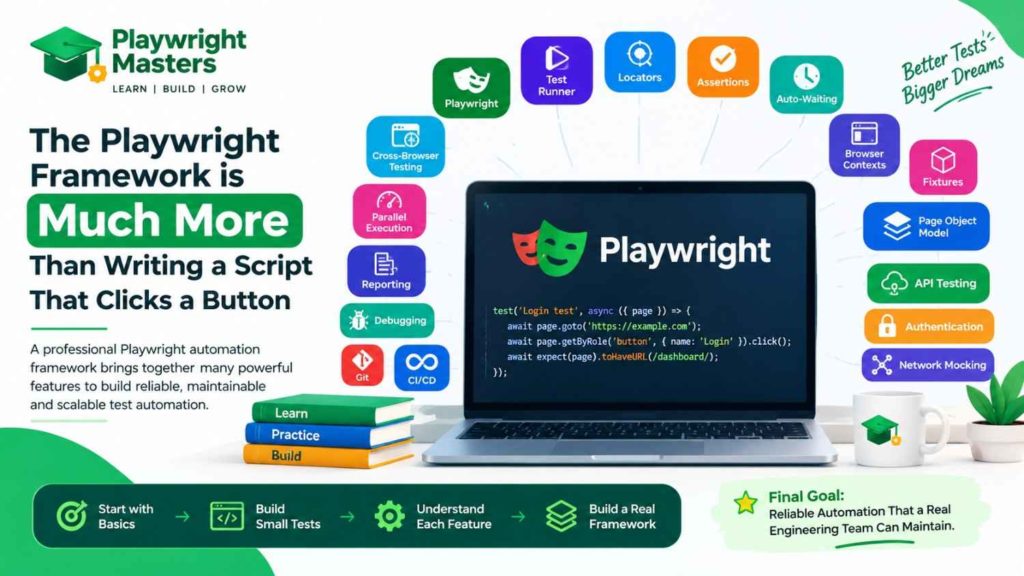
What Is the Playwright Framework?
Playwright is an open-source framework for web automation and end-to-end testing.
It allows developers and testers to control modern web browsers using code.
Playwright can automate browsers such as:
- Chromium
- Firefox
- WebKit
It provides one automation API for these browser engines.
The official Playwright project describes Playwright as a framework for web automation and testing, with Playwright Test providing features such as test running, assertions, isolation, parallel execution and testing tools.
In simple words:
Playwright framework = tools + test runner + browser automation + assertions + debugging + reporting + reusable test architecture.
That is why Playwright is more than simply a tool that clicks buttons.
Define the Scope of Your Reusable Framework
Start with the workflows the suite must protect, the environments it will run against and the people who will maintain it. Create shared code for repeated work, such as navigation or test-account setup. Keep business expectations visible in the test.
A small suite may need only tests, a configuration file and a few page objects. Add utilities and service clients when repeated usage justifies them; unused layers create maintenance work.
What Is the Playwright Testing Framework?
Playwright Test is Playwright’s end-to-end testing framework for modern web applications.
It includes important features needed to build and run automated tests.
These include:
- Test runner
- Assertions
- Fixtures
- Browser contexts
- Parallel execution
- Test isolation
- Retries
- Screenshots
- Videos
- Trace Viewer
- HTML reports
- Projects
- Configuration
- Debugging tools
The official documentation describes Playwright Test as an end-to-end test framework that bundles the test runner, assertions, isolation, parallelization and rich tooling.
This is one reason Playwright is attractive for modern automation projects.
You do not have to assemble every basic testing feature yourself.
Playwright Framework vs Playwright
This is a common beginner question.
Playwright is the browser automation technology and ecosystem.
Playwright Test is the test framework provided for end-to-end testing.
For example, you can use Playwright as a browser automation library to control a browser.
But if you want a complete test automation setup, Playwright Test gives you:
Test Runner
↓
Fixtures
↓
Browser Context
↓
Page
↓
Locators
↓
Actions
↓
Assertions
↓
Reports
This makes Playwright Test particularly useful for building complete automation projects.
Why Is the Playwright Framework Popular?
Modern websites are very different from simple websites built years ago.
Today’s applications may contain:
- JavaScript
- React
- Angular
- Vue
- dynamic content
- APIs
- authentication
- popups
- iframes
- multiple tabs
- file uploads
- file downloads
- real-time data
- responsive layouts
A modern automation framework must handle these situations reliably.
Playwright provides features designed for modern web applications.
Some important advantages are:
1. Cross-browser testing
You can test your application across Chromium, Firefox and WebKit.
2. Auto-waiting
Playwright automatically waits for many actionability conditions before performing actions.
This can reduce unnecessary manual waits.
3. Browser isolation
Browser contexts allow tests to run with isolated sessions.
4. Parallel testing
Tests can be executed in parallel to reduce overall execution time.
5. Powerful locators
Playwright provides user-focused locator methods such as:
getByRole()
getByLabel()
getByText()
getByPlaceholder()
getByTestId()
6. Built-in assertions
You can verify application behavior using Playwright’s web-first assertions.
7. Debugging tools
Playwright provides tools such as Inspector and Trace Viewer.
8. API testing
Playwright can also send API requests and validate responses.
9. Network mocking
You can intercept network requests and simulate different backend responses.
10. CI/CD support
Playwright can be integrated into modern CI/CD pipelines.
Microsoft’s current Playwright material also highlights its test runner, Codegen, UI Mode, Trace Viewer, VS Code integration and AI-assisted development ecosystem.
Connect the Framework Components
Use configuration for execution settings, fixtures for setup and cleanup, page objects for reusable UI interactions, and test files for scenarios and expected results. Keep these responsibilities separate as you implement the suite.
The Playwright architecture guide explains the design trade-offs. The sections below focus on how the components work together in code.
1. Test Runner: Organize Execution
Keep runnable scenarios in the configured test directory. Use test names that describe expected behavior and tags or projects to select useful groups. Run each test independently before including it in a larger suite.
Keep environment-specific options in configuration rather than duplicating them in individual test files.
2. Browser: Choose Execution Targets
Declare required browser targets in configuration projects. Keep browser selection outside reusable page objects so the same scenario can run against the chosen engines without creating separate test implementations.
3. Browser Context: Isolate Test State
Use the isolated context provided for each Playwright Test test. Avoid sharing mutable pages or accounts between independent scenarios. When reusing saved authentication state, remember that browser isolation does not isolate records stored on your application server.
4. Page: Pass Dependencies Explicitly
Pass the test-provided page into page objects or helper functions. Avoid creating a global page that unrelated tests reuse: it obscures ownership and can make concurrent execution unreliable.
A page object should receive the resource it uses, rather than silently starting its own browser.
5. Locator: Keep UI Contracts Together
Store repeated locators alongside the page or component interactions that use them. Prefer roles, labels or agreed test IDs. When the interface changes, update the relevant page object rather than searching through many scenarios for duplicated selectors.
6. Action: Expose Meaningful Operations
Create methods for repeated user operations, such as opening a product or submitting a form. Avoid wrappers that merely rename every Playwright method. Keep methods small enough that a failure identifies which operation did not complete.
7. Assertion: Preserve the Scenario’s Expected Result
Keep scenario-specific expectations visible in tests. Page objects can expose locators or focused checks, but should not hide unrelated business assertions inside navigation or click methods. A reader should understand the expected outcome without inspecting every helper.
Prepare an Existing Playwright Test Project
Use a project where a simple test already passes. If setup is incomplete, finish the installation and first-test tutorial before extracting reusable code.
Commit the package lockfile, confirm that required browsers are installed, and run the baseline test. That passing baseline helps distinguish a framework change from an environment problem.
Basic Playwright Project Structure
After installation, you may have a structure similar to:
playwright-project/
│
├── tests/
│ └── example.spec.ts
│
├── playwright.config.ts
│
├── package.json
│
└── package-lock.json
As the project grows, a professional framework may become:
playwright-project/
│
├── tests/
│ ├── login/
│ ├── checkout/
│ ├── search/
│ ├── regression/
│ └── api/
│
├── pages/
│ ├── LoginPage.ts
│ ├── HomePage.ts
│ └── CheckoutPage.ts
│
├── fixtures/
│
├── test-data/
│
├── utils/
│
├── api/
│
├── auth/
│
├── config/
│
├── reports/
│
├── playwright.config.ts
│
├── package.json
│
└── README.md
Do not copy this structure blindly.
The correct structure depends on the size and needs of your project.
A small project does not need 20 folders.
A large enterprise project may need much more organization.
Keep a Baseline Test Before Refactoring
Keep a small, independent test as a baseline before moving repeated code into page objects or fixtures:
import { test, expect } from '@playwright/test';

test('baseline page opens', async ({ page }) => {
  await page.goto('https://example.com');
  await expect(page.getByRole('heading', { name: 'Example Domain' }))
    .toBeVisible();
});
Run the baseline after each refactoring step. Keep the scenario and assertion recognizable as implementation details move into reusable components.
How to Run Playwright Tests
After each refactor, run the affected test file before the full suite. Confirm that the test also runs independently, so shared setup has not introduced an ordering dependency.
Run npx playwright test to check the integrated suite and inspect failures before committing. For introductory command usage, follow the first-test tutorial; use the CI/CD guide for pipeline execution.
Playwright Locators
Place repeated page-specific locators in the page object or component that owns the interaction. Keep scenario expectations readable in the test instead of duplicating selectors across unrelated files.
Prefer a stable user-facing locator contract. When the interface changes, update the owning component and run the scenarios that depend on it. For locator syntax and selection strategies, see the Playwright Locators guide.
Why Auto-Waiting Matters
One of Playwright’s biggest advantages is its waiting behavior.
Imagine a button appears after two seconds.
A beginner may write:
await page.waitForTimeout(2000);
await page.getByRole('button').click();
This is usually a poor strategy.
Why?
Because maybe the button appears after 500 milliseconds.
Or maybe the server takes 4 seconds.
The fixed two-second wait is either:
- wasting time
- or not long enough
Playwright instead waits for the element to become actionable for supported actions.
That is one reason you should generally prefer Playwright’s built-in waiting behavior over arbitrary sleep statements.
Playwright Assertions
Keep each test’s business expectation visible at the scenario level. Shared helpers may perform reusable checks, but a test should still reveal what outcome it is proving and why a failure matters.
Use Playwright’s awaited web assertions for changing UI state, and avoid swallowing assertion failures inside utilities. For matcher examples and retry behaviour, use the assertions guide.
Playwright Fixtures
Create fixtures/test.ts to provide the page object to each test:
import { test as base } from '@playwright/test';
import { TodoPage } from '../pages/TodoPage';

type Fixtures = { todoPage: TodoPage };

export const test = base.extend<Fixtures>({
  todoPage: async ({ page }, use) => {
    await use(new TodoPage(page));
  },
});

export { expect } from '@playwright/test';
In tests/todo.spec.ts, import your extended test:
import { test, expect } from '../fixtures/test';

test('a new task appears in the list', async ({ todoPage }) => {
  await todoPage.open();
  await todoPage.addTask('Review test report');
  await expect(todoPage.task('Review test report')).toBeVisible();
});
This illustrates composition; it requires a running application with the matching UI, a configured baseURL and isolated test data. For lifecycle and scope details, read the Playwright Fixtures guide and official fixture documentation.
Page Object Model in Playwright
Create pages/TodoPage.ts for the repeated interactions in a to-do workflow. This example expects an application with a textbox labelled “New task” and an “Add task” button; adapt those interface contracts to your application.
import type { Page } from '@playwright/test';

export class TodoPage {
  constructor(private readonly page: Page) {}

  async open() {
    await this.page.goto('/todos');
  }

  async addTask(name: string) {
    await this.page.getByRole('textbox', { name: 'New task' }).fill(name);
    await this.page.getByRole('button', { name: 'Add task', exact: true }).click();
  }

  task(name: string) {
    return this.page.getByRole('listitem').filter({ hasText: name });
  }
}
The page object contains interface interactions. The test below owns the expected business result. Set baseURL in configuration to the address of your test application.
See the official Page Object Model guide for the pattern.
Data-Driven Testing
Suppose you need to test login with 50 users.
You should not necessarily write 50 separate test files.
Instead, separate test logic from test data.
Example:
User 1 → Valid account
User 2 → Invalid password
User 3 → Locked account
User 4 → Expired password
The test logic can remain the same.
Only the data changes.
Data can come from:
- JSON
- CSV
- arrays
- databases
- APIs
- environment variables
- test-data factories
This becomes important when your automation suite grows.
API Testing With Playwright
Playwright is not limited to UI testing.
You can also test APIs.
This is useful because modern applications usually have:
Frontend
↓
API
↓
Backend
↓
Database
Testing only the browser may not be enough.
You can use Playwright API testing to:
- send GET requests
- send POST requests
- send PUT requests
- send PATCH requests
- send DELETE requests
- validate status codes
- validate response bodies
- manage authentication
- prepare test data
UI + API Testing Together
A powerful automation strategy is combining API and UI testing.
For example:
API
↓
Create test user
↓
UI
↓
Login as user
↓
UI
↓
Perform business flow
↓
API
↓
Verify backend result
This can be faster and more reliable than performing every setup operation through the user interface.
Authentication in Playwright
Authentication is another major topic in real projects.
A test may need:
Login
↓
Dashboard
↓
Orders
↓
Profile
If every test logs in from scratch, the suite can become slower.
Playwright supports reusable authentication state.
This allows you to save authentication information and reuse it where appropriate.
However, authentication state must be handled securely.
Never commit passwords, access tokens or sensitive credentials to Git.
Use environment variables or secure CI/CD secrets.
Cross-Browser Testing
One major reason teams choose Playwright is cross-browser testing.
You can test against:
- Chromium
- Firefox
- WebKit
The same Playwright test can be configured to run against multiple browser projects.
For example:
Test Suite
   |
   +-- Chromium
   |
   +-- Firefox
   |
   +-- WebKit
The official Playwright documentation confirms support for Chromium, Firefox and WebKit across supported operating systems.
Mobile and Device Emulation
Playwright can also emulate mobile devices.
This is useful when you want to test:
- mobile viewport
- touch interactions
- device characteristics
- mobile browser behavior
Remember:
Device emulation is not the same thing as testing on every real physical device.
Emulation is extremely useful, but teams with strict device coverage requirements may also use real-device testing infrastructure.
Parallel Testing
Imagine you have 1,000 tests.
Running them one after another could take a long time.
Parallel execution allows independent tests to run at the same time.
For example:
Worker 1 → Tests 1–100
Worker 2 → Tests 101–200
Worker 3 → Tests 201–300
Worker 4 → Tests 301–400
This can significantly reduce overall execution time.
But parallel testing only works well when tests are designed correctly.
Tests should not unnecessarily share mutable state.
Test Isolation
A reliable automation framework needs test isolation.
For example:
Test A → User A
Test B → User B
Test A should not accidentally change the state required by Test B.
Browser contexts help create isolated sessions.
Good test isolation reduces:
- unexpected failures
- order dependency
- data conflicts
- flaky behavior
Handling Multiple Tabs and Windows
Modern applications may open:
- new tabs
- popup windows
- authentication windows
Playwright provides APIs for handling these situations.
For example:
const newPagePromise = page.waitForEvent('popup');

await page.getByRole('link', { name: 'Open' }).click();

const newPage = await newPagePromise;
The exact approach depends on whether the application creates a popup, a new page or a new browser context.
Handling Iframes
Some applications contain content inside iframes.
Playwright provides frame locators to interact with iframe content.
Example:
const frame = page.frameLocator('#payment-frame');

await frame.getByLabel('Card number').fill('4111111111111111');
This is especially useful for payment forms, embedded applications and third-party widgets.
File Upload and Download
Real applications often require file handling.
Examples:
- profile image upload
- resume upload
- document upload
- CSV download
- PDF download
Playwright supports file upload and download workflows.
This is an important topic for real-world automation because many business applications depend on documents.
Network Interception and Mocking
Sometimes you do not want your test to depend on a real API.
For example, suppose your application depends on:
GET /products
You can intercept the request and provide controlled test data.
This helps you test scenarios such as:
- successful API response
- empty response
- server error
- slow response
- invalid data
Network mocking is especially valuable when some backend conditions are difficult to reproduce.
Screenshots, Videos and Trace Viewer
Debugging failed automation tests can be difficult.
Playwright provides tools that make this easier.
Screenshots
Capture the application state at a particular point.
Videos
Record test execution when configured.
Trace Viewer
Trace Viewer is particularly useful for investigating failures.
It can help you understand:
- what action ran
- what the page looked like
- which locator was used
- network activity
- errors
- timing
- DOM information
Instead of asking:
“Why did this test fail in CI?”
you can inspect the recorded trace and investigate what actually happened.
Playwright Test Projects
Playwright Projects allow you to define multiple configurations in one Playwright configuration.
For example:
projects:
Chromium
Firefox
WebKit
Mobile Chrome
Mobile Safari
Staging
Production
This is useful when the same test suite must run under different configurations.
Playwright Configuration
The main configuration file is commonly:
playwright.config.ts
It can contain settings for:
- browsers
- base URL
- retries
- workers
- reporters
- timeouts
- screenshots
- videos
- traces
- projects
- web server
- test directory
Example:
import { defineConfig } from '@playwright/test';

export default defineConfig({

  testDir: './tests',

  use: {
    baseURL: 'https://example.com',
    trace: 'on-first-retry'
  },

  retries: 1

});
Keep environment-specific information outside the test code whenever possible.
Reporting in Playwright
A professional automation framework should make test results easy to understand.
Reports can show:
- passed tests
- failed tests
- skipped tests
- duration
- errors
- traces
- screenshots
- videos
Playwright includes an HTML reporter that can be used to inspect test execution results.
This becomes particularly useful when tests run automatically in CI/CD.
CI/CD With Playwright
A professional test suite should not live only on a tester’s laptop.
A common workflow is:
Developer pushes code
↓
Git
↓
CI pipeline starts
↓
Install dependencies
↓
Install browsers
↓
Run Playwright tests
↓
Generate report
↓
Pass / Fail
Playwright can be integrated with CI systems such as:
- GitHub Actions
- Jenkins
- Azure Pipelines
- GitLab CI
- other CI platforms
Microsoft’s Playwright learning resources specifically include running Playwright tests in continuous integration.
Git and GitHub for Playwright Projects
If you want to work professionally as an automation engineer, learning Git is important.
Your Playwright framework should ideally be version-controlled.
Typical workflow:
git add .
git commit -m "Add login automation"
git push
Your GitHub repository can demonstrate:
- framework architecture
- coding ability
- test design
- documentation
- CI/CD
- reporting
A good GitHub project can be more useful in an interview than simply saying:
“I know Playwright.”
A Professional Playwright Framework Structure
For a larger automation project, you could use a structure such as:
playwright-framework/
│
├── tests/
│ ├── smoke/
│ ├── regression/
│ ├── login/
│ ├── checkout/
│ └── api/
│
├── pages/
│ ├── LoginPage.ts
│ ├── HomePage.ts
│ ├── ProductPage.ts
│ └── CheckoutPage.ts
│
├── fixtures/
│ └── test-fixtures.ts
│
├── test-data/
│ ├── users.json
│ └── products.json
│
├── utils/
│ ├── api-utils.ts
│ └── date-utils.ts
│
├── auth/
│
├── config/
│
├── reports/
│
├── playwright.config.ts
│
├── package.json
│
└── README.md
Again, treat this as an example rather than a mandatory structure.
What Makes a Good Playwright Framework?
A good framework is not the framework with the most folders.
A good framework makes automation:
easy to write + easy to understand + easy to debug + easy to maintain + easy to scale.
A professional framework should focus on:
1. Reusability
Avoid repeating the same code everywhere.
2. Maintainability
When the application changes, updates should be simple.
3. Reliability
Tests should fail because the application is broken—not because the automation is poorly designed.
4. Scalability
The framework should continue working as the number of tests increases.
5. Debuggability
A failed test should provide enough evidence to find the problem.
6. Security
Passwords, tokens and secrets must not be stored directly in source code.
7. CI/CD readiness
Tests should be able to run automatically.
Common Mistakes in Playwright Framework Design
Even a powerful tool can be used badly.
Avoid these mistakes.
Mistake 1: Using fixed waits everywhere
Avoid:
await page.waitForTimeout(5000);
Use appropriate locators and assertions instead.
Mistake 2: Using unstable locators
A locator based on changing CSS classes can break easily.
Prefer user-facing and stable locator strategies where appropriate.
Mistake 3: Making every test dependent on another test
Each test should ideally be independent.
Mistake 4: Creating an unnecessarily complicated POM
Do not create hundreds of methods just to make a project look “professional.”
Mistake 5: Hardcoding credentials
Never put passwords and secrets directly into test files.
Mistake 6: Ignoring API testing
Modern applications depend heavily on APIs.
Understanding UI + API testing can make your framework much stronger.
Mistake 7: Running everything sequentially
Independent tests should be designed to benefit from parallel execution where appropriate.
Mistake 8: Ignoring CI failures
A test that works only on your laptop is not enough for a professional automation project.
Playwright Framework Best Practices
Here is a practical checklist.
Locator best practices
- Prefer stable, user-facing locators.
- Use role-based locators where appropriate.
- Avoid unnecessary XPath.
- Avoid overly complicated selectors.
Test best practices
- Keep tests focused.
- Avoid test dependencies.
- Use meaningful test names.
- Add useful assertions.
- Keep test data separate.
Framework best practices
- Reuse common functionality.
- Use fixtures appropriately.
- Use POM when it improves maintainability.
- Keep configuration centralized.
- Use environment variables for secrets.
- Maintain clean project structure.
Debugging best practices
- Use Inspector locally.
- Use Trace Viewer for difficult failures.
- Capture screenshots when useful.
- Configure traces strategically.
CI/CD best practices
- Run tests automatically.
- Store reports.
- Keep secrets in CI/CD secret storage.
- Use retries carefully.
- Investigate flaky tests instead of hiding them with unlimited retries.
Playwright Framework vs Selenium
Selenium remains a major browser automation technology, so many testers ask:
Is Playwright better than Selenium?
There is no universal answer.
Playwright is particularly attractive for new modern web automation projects because it provides a tightly integrated testing experience, auto-waiting, browser contexts, tracing and modern test tooling.
Selenium has a very mature ecosystem, WebDriver foundation, broad browser support and extensive enterprise adoption.
The correct choice depends on:
- project requirements
- existing framework
- programming language
- browser requirements
- team skills
- infrastructure
- migration cost
Playwright Framework Languages
Playwright is not limited to one programming language.
Officially supported language options include:
- JavaScript
- TypeScript
- Python
- Java
- .NET
The testing experience differs between languages.
For example, Playwright for Node.js includes its own test runner, while Python commonly uses the Playwright Pytest plugin. Java can use frameworks such as JUnit or TestNG, and .NET supports testing frameworks such as MSTest, NUnit and xUnit.
If your goal is specifically Playwright Test framework development, JavaScript or TypeScript is usually the most direct path.
Who Should Learn the Playwright Framework?
Playwright is useful for:
Beginners
If you are new to automation, Playwright can be a good modern starting point.
Manual Testers
Manual testers can use Playwright to move toward automation testing.
QA Engineers
Existing automation engineers can use Playwright to build modern browser automation.
SDETs
SDETs can use Playwright for UI, API, framework and CI/CD automation.
Developers
Developers can use Playwright for end-to-end testing and browser automation.
DevOps Engineers
Playwright can be integrated into CI/CD pipelines.
What Should You Learn Before Building a Playwright Framework?
Do not jump directly into advanced framework architecture.
Follow this order:
Software Testing Basics
↓
JavaScript / TypeScript Basics
↓
Playwright Basics
↓
Locators
↓
Actions
↓
Assertions
↓
Waits
↓
Browser / Context / Page
↓
Fixtures
↓
Page Object Model
↓
Test Data
↓
API Testing
↓
Authentication
↓
Network Mocking
↓
Cross-Browser Testing
↓
Parallel Testing
↓
Reporting
↓
Git
↓
CI/CD
↓
Framework Architecture
For a complete learning path:
Playwright Roadmap: Beginner to Advanced
You can also use our complete curriculum:
Playwright Syllabus: Complete Beginner to Advanced Curriculum
How Long Does It Take to Learn the Playwright Framework?
The answer depends on your previous experience.
If you are completely new to automation
Start with:
- testing fundamentals
- JavaScript/TypeScript basics
- browser concepts
- Playwright fundamentals
If you already know Selenium
You may understand many automation concepts already.
Focus on:
- Playwright architecture
- locators
- auto-waiting
- BrowserContext
- fixtures
- projects
- tracing
- API testing
- Playwright-specific framework design
If you already know JavaScript/TypeScript
You can focus more heavily on Playwright and test architecture.
The goal should not be:
“Finish Playwright quickly.”
The goal should be:
“Build automation that works reliably in a real project.”
How to Become a Playwright Automation Engineer
Learning commands is not enough.
A professional automation engineer should understand:
Testing
+
Programming
+
Playwright
+
Framework Design
+
API Testing
+
Git
+
CI/CD
+
Debugging
+
Real Projects
You should be able to explain why your framework was designed a certain way.
For example, an interviewer may ask:
Why did you use fixtures?
A strong answer explains the problem fixtures solve.
They may ask:
Why did you choose this locator?
Explain stability and user-facing behavior.
They may ask:
How do you reduce flaky tests?
Discuss locator quality, auto-waiting, test isolation, test data, synchronization and debugging.
That is much stronger than memorizing Playwright commands.
Playwright Framework for Real-Time Projects
A good practice project should represent a real business workflow.
For example, an e-commerce project can contain:
Registration
↓
Login
↓
Search Product
↓
Filter Product
↓
Product Details
↓
Add to Cart
↓
Checkout
↓
Payment
↓
Order Confirmation
Then add:
- Page Object Model
- fixtures
- test data
- API testing
- authentication
- screenshots
- trace collection
- HTML reporting
- cross-browser testing
- Git
- CI/CD
This gives you practical framework experience rather than just syntax knowledge.
What Is the Future of the Playwright Framework?
Playwright is continuing to evolve.
The modern Playwright ecosystem increasingly includes developer tooling, AI-assisted workflows and automation-agent capabilities alongside traditional browser testing.
Microsoft’s 2025 overview highlighted Playwright’s broader ecosystem, including VS Code tooling, Codegen, UI Mode, Trace Viewer and Playwright MCP for AI-assisted automation.
This does not mean AI replaces testing knowledge.
A better approach is:
Testing Knowledge
+
Playwright Knowledge
+
AI Productivity
=
Better Automation Engineering
Learn the fundamentals first.
Then use AI to improve productivity.
Final Takeaway
The Playwright framework is much more than writing a script that clicks a button.
A professional Playwright automation framework brings together:
Playwright
+
Test Runner
+
Locators
+
Assertions
+
Auto-Waiting
+
Browser Contexts
+
Fixtures
+
Page Object Model
+
API Testing
+
Authentication
+
Network Mocking
+
Cross-Browser Testing
+
Parallel Execution
+
Reporting
+
Debugging
+
Git
+
CI/CD
If you are a beginner, do not try to learn everything in one day.
Start with the basics.
Build small tests.
Understand why each feature exists.
Then gradually build a real framework.
The final goal is not to write the most Playwright code.
The goal is to build reliable automation that a real engineering team can maintain.
If you want to continue learning, explore the Playwright Roadmap, Playwright Syllabus, Playwright Locators, Playwright API Testing, and Playwright Projects explore our Playwright Automation Testing Course in Hyderabad.
Frequently Asked Questions About the Playwright Framework
What is the Playwright framework?
The Playwright framework is a modern web automation and end-to-end testing framework that allows developers and testers to automate browsers and validate web applications.
Is Playwright a framework or a library?
Playwright provides browser automation libraries for multiple programming languages, while Playwright Test provides a complete end-to-end testing framework with a test runner, assertions, fixtures, isolation, parallelization and reporting tools.
Is Playwright free?
Yes. Playwright is open-source software and can be installed and used without paying Microsoft a license fee.
Is Playwright better than Selenium?
Neither is universally better. Playwright is particularly strong for modern web testing and integrated tooling, while Selenium remains highly valuable for established WebDriver-based ecosystems and broad enterprise use.
Which browsers does Playwright support?
Playwright supports Chromium, Firefox and WebKit. It can also be configured for supported branded browser channels and device emulation.
Which programming languages does Playwright support?
Playwright supports JavaScript/TypeScript, Python, Java and .NET.
Is Playwright good for beginners?
Yes. Beginners can learn Playwright, especially if they first understand basic software testing and programming concepts.
Does Playwright support API testing?
Yes. Playwright provides API request capabilities that can be used to send requests and validate API responses.
What are Playwright fixtures?
Fixtures provide tests with reusable setup and resources such as pages, browser contexts and custom test dependencies.
What is Page Object Model in Playwright?
Page Object Model is a design approach where page-related locators and actions are organized into reusable page classes.
Does Playwright support parallel testing?
Yes. Playwright Test supports parallel execution, allowing independent tests to run concurrently.
What is BrowserContext in Playwright?
A BrowserContext provides an isolated browser session with its own cookies, storage and other session state.
What is Playwright auto-waiting?
Auto-waiting means Playwright automatically waits for supported actionability conditions before performing actions and uses retrying assertions for many expected conditions.
Can Playwright test mobile applications?
Playwright can emulate mobile browser environments and device characteristics. It is primarily a web browser automation framework, not a native mobile application testing framework like Appium.
Can Playwright be used in CI/CD?
Yes. Playwright can be integrated with CI/CD platforms such as GitHub Actions, Jenkins and Azure Pipelines.
Is Page Object Model mandatory in Playwright?
No. Playwright does not require POM. It is a design pattern that can be useful when it improves organization and maintainability.
How do I learn Playwright framework from beginner to advanced?
Start with programming and testing fundamentals, then learn Playwright installation, locators, actions, assertions, auto-waiting, browser contexts, fixtures, POM, API testing, authentication, network mocking, parallel testing, reporting, Git, CI/CD and framework architecture.
What is the best way to practice Playwright?
Build a real project rather than only completing syntax exercises. An e-commerce, banking, CRM or booking workflow can provide realistic scenarios for UI, API, authentication, test data and framework design.
Playwright Masters Team
Playwright Automation Testing Experts | Industry-Focused Training & Practical Learning
Playwright Masters is a dedicated automation testing training platform focused on helping learners build practical skills in Playwright automation testing. Our training covers real-world automation concepts, framework practices, coding, debugging, API testing, cross-browser testing, CI/CD, and interview preparation to help learners develop job-ready testing skills.