
Playwright File Upload and Download: Complete Testing Guide with Examples (2026)
Uploading a document or downloading a report seems simple when everything works. But a file can appear on a webpage without reaching the server, and a download can finish without containing the correct information.
This is why reliable file automation must check more than the browser action.
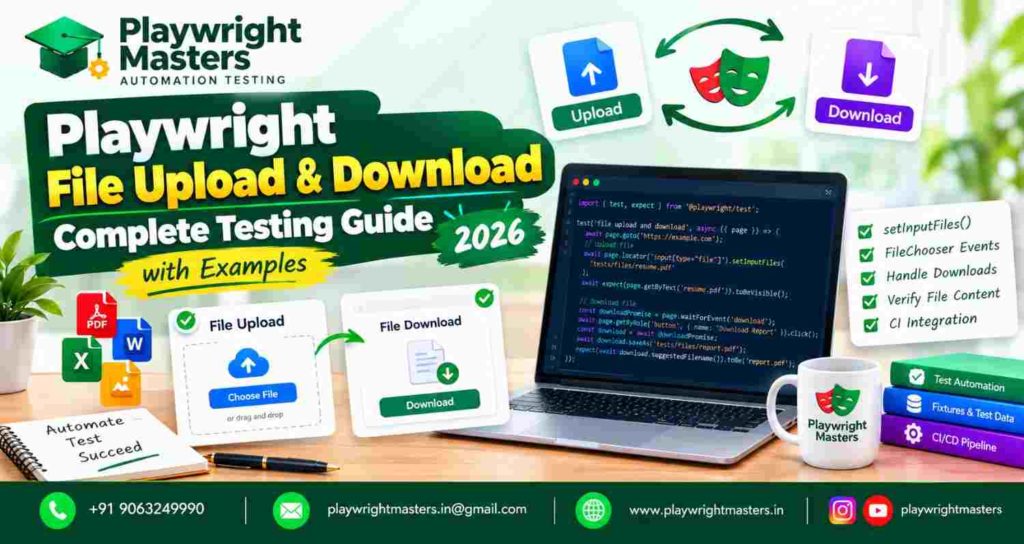
Playwright file upload and download testing verifies how a web application selects, transfers, processes, saves, and delivers files. Playwright provides setInputFiles() for file inputs, filechooser events for dynamic selectors, and download events for handling files generated by websites.
Table of Contents
ToggleThese features help test resume submissions, profile pictures, invoice exports, financial reports, and document-management systems.
In this guide, you will learn how to automate file transfers using TypeScript, check upload restrictions, inspect downloaded content, and prevent common failures in continuous integration (CI).
What Is File Upload and Download Testing in Playwright?
File upload testing checks whether an application correctly receives a file selected by a user. File download testing checks whether the application generates or delivers the expected file.
For example, when a job applicant submits a resume, the test should verify that the correct document was accepted.
When a customer downloads an invoice, the test should confirm that the resulting document is available and contains the expected information.
Playwright supports these interactions through browser automation APIs, but the application determines whether a transfer actually succeeds.
What is the difference between selecting and uploading a file?
Selecting a file places it in a webpage’s file input. Uploading means the application transfers the file to a server or another destination.
These actions may happen together, or the website may require the user to click a separate Submit button.
A successful setInputFiles() call does not prove that the server stored the file.
A complete test should check the application outcome.
How Does Playwright Handle Files?
Playwright provides different APIs depending on whether the application receives a file or sends one to the browser.
Task | Playwright API | Main purpose |
Select one file | locator.setInputFiles() | Populate a file input |
Select several files | setInputFiles([…]) | Provide multiple attachments |
Handle a dynamic picker | page.waitForEvent(‘filechooser’) | Capture a file chooser |
Remove a selection | setInputFiles([]) | Clear selected files |
Detect a download | page.waitForEvent(‘download’) | Capture a browser download |
Save a download | download.saveAs() | Preserve the downloaded file |
Inspect file name | download.suggestedFilename() | Check the suggested name |
Check transfer failure | download.failure() | Detect reported download failure |
The key is to choose an API that matches the application’s behavior.
For broader concepts about building reusable automation, see the Playwright Framework Guide.
How to Upload a File Using Playwright setInputFiles()
The simplest Playwright file upload uses locator.setInputFiles() to assign a local file to an HTML file input.
The input must be associated with a file-upload control, even if the webpage displays a styled button instead of a traditional Choose File field.
Example: Upload a resume
import { test, expect } from ‘@playwright/test’;
test(‘selects a resume’, async ({ page }) => {
await page.goto(‘https://app.example.com/jobs’);
await page
.locator(‘input[type=”file”]’)
.setInputFiles(‘tests/files/resume.pdf’);
await expect(
page.getByText(‘resume.pdf’)
).toBeVisible();
});
This example assumes that the application displays the selected file name.
The test checks the browser interface after selection. If the application uploads only after the user submits a form, another action and assertion are required.
Can Playwright upload a file through a hidden input?
Yes. Playwright can set files directly on a hidden file input without opening the operating system’s file selection window.
This is useful when websites use custom upload buttons that activate underlying HTML inputs.
Use a precise locator when a page contains multiple upload controls.
For a deeper explanation of reliable element selection, read the Playwright Locators Guide.
How to Upload Multiple Files in Playwright
Multiple-file upload testing checks whether an application accepts several attachments in one selection.
A typical example is a customer support form that accepts screenshots, invoices, and supporting documents.
Playwright can select multiple files by passing an array to setInputFiles().
await page
.locator(‘input[type=”file”]’)
.setInputFiles([
‘tests/files/invoice.pdf’,
‘tests/files/receipt.pdf’
]);
The input must support multiple files, normally through its HTML multiple attribute.
How do you validate multiple uploads?
Check the number of files the application displays and verify the expected file names.
If the website uploads files to the server, confirm that each required document was accepted.
A partial upload is an important failure scenario. An interface may successfully process one file while rejecting another.
Tests should detect that difference rather than treating the entire operation as successful.
How to Handle a File Chooser in Playwright
Some websites create a file input only after the user clicks an upload control.
When the workflow triggers a file chooser, Playwright can capture it through the filechooser event.
Example: Dynamic upload button
const chooserPromise =
page.waitForEvent(‘filechooser’);
await page.getByRole(‘button’, {
name: ‘Choose document’
}).click();
const chooser = await chooserPromise;
await chooser.setFiles(
‘tests/files/agreement.pdf’
);
The important detail is the order of operations.
Create the event listener before clicking the button.
If the listener is created afterward, the chooser event may already have occurred.
Should you use filechooser for every upload?
No. When a stable file input exists, setInputFiles() is usually simpler.
Use the file chooser event when the application’s design requires that interaction, particularly when the file input is created dynamically.
Upload Files Without Creating Physical Test Files
Playwright supports file content generated directly in memory.
This is useful when tests need small text documents, sample JSON, or other temporary file data.
Example: Upload a text file from memory
await page
.locator(‘input[type=”file”]’)
.setInputFiles({
name: ‘message.txt’,
mimeType: ‘text/plain’,
buffer: Buffer.from(
‘Automated document validation’
)
});
Here, the file is represented by a name, a MIME type, and its content.
No separate file needs to be maintained in the test repository.
When should you use in-memory uploads?
In-memory uploads work well for simple documents generated specifically for a test.
Physical files remain useful when testing real document structures, image metadata, PDF processing, or format-specific behavior.
For example, assigning the name invoice.pdf to arbitrary text does not create a valid PDF document.
Use an actual PDF when the test depends on PDF processing.
How to Test File Size Limits
Many applications restrict upload size to control storage usage and protect performance.
A file-upload test should verify how the application responds when a selected file exceeds its configured maximum.
Suppose a form accepts documents up to 5 MiB.
A useful negative test can submit a file larger than that limit.
Example: Generate an oversized test file
const oversizedFile = {
name: ‘large-document.bin’,
mimeType: ‘application/octet-stream’,
buffer: Buffer.alloc(6 * 1024 * 1024)
};
await page
.locator(‘input[type=”file”]’)
.setInputFiles(oversizedFile);
The generated content is 6 MiB.
After setting the file, verify the validation message or other rejection behavior defined by your application.
What should a file-size test confirm?
The application should clearly reject files above the allowed size and explain the problem to the user.
The server should also enforce the restriction.
A browser-side rejection alone does not establish that the backend is protected against oversized uploads.
Avoid unnecessarily large test documents in routine CI runs.
How to Test Invalid File Formats
File-type validation prevents users from submitting documents that an application does not support.
For example, a resume portal might allow PDF documents while rejecting executable files.
Example: Submit an unsupported file
await page
.locator(‘input[type=”file”]’)
.setInputFiles({
name: ‘unsupported.txt’,
mimeType: ‘text/plain’,
buffer: Buffer.from(‘Sample text’)
});
await expect(
page.getByRole(‘alert’)
).toContainText(‘PDF files only’);
This test assumes that the application displays the specified error message.
The expected text and allowed formats must match the actual product requirements.
Does the HTML accept attribute guarantee file security?
No. The HTML accept attribute guides file selection but should not be treated as a complete security check.
The backend should validate file format, size, and content according to application requirements.
For security-sensitive systems, test how the server handles invalid or misleading file content rather than relying only on filename extensions.
How to Clear a Selected File
Users sometimes select the wrong document and need to replace it.
Playwright can clear the files assigned to an input:
await page
.locator(‘input[type=”file”]’)
.setInputFiles([]);
This removes the current browser input selection.
It does not automatically delete a document that has already been uploaded and stored by the server.
How should you test file removal?
First determine whether the application is removing a selected file or deleting a previously uploaded file.
For local selection removal, verify that the input or selected-file list becomes empty.
For server-stored documents, use the application’s Remove or Delete control and check the resulting state.
These are different user workflows and should not be confused.
How to Automate File Downloads in Playwright
Playwright file downloads are captured using the page’s download event. The event provides a Download object that can be used to inspect and preserve the file.
A typical download test opens a report page, clicks an export button, and checks the generated attachment.
Example: Download a CSV report
import { test, expect } from ‘@playwright/test’;
test(‘downloads a CSV report’, async ({ page }) => {
await page.goto(‘https://app.example.com/reports’);
const downloadPromise =
page.waitForEvent(‘download’);
await page.getByRole(‘button’, {
name: ‘Export CSV’
}).click();
const download = await downloadPromise;
expect(
download.suggestedFilename()
).toBe(‘orders.csv’);
await download.saveAs(
‘test-results/orders.csv’
);
});
This example assumes the application produces an attachment named orders.csv.
Create the download listener before clicking the export button.
The download may begin immediately, so attaching the listener afterward can miss the event.
How to Verify That a Download Completed Successfully
A download event signals that the browser started downloading an attachment.
It does not prove that the file contains the correct information.
Playwright exposes download.failure() to identify reported download failures.
Example: Check download status
const error = await download.failure();
expect(error).toBeNull();
A null result means Playwright did not report a download failure.
What else should a download test verify?
Depending on the application, check the filename, saved file size, format, and expected content.
For example, an invoice export should not pass merely because a file named invoice.pdf exists.
The test may also need to confirm that the invoice belongs to the correct order.
A reliable download test checks the document’s usefulness, not just its arrival.
How to Validate Downloaded CSV Content
CSV exports are common in admin dashboards, financial software, and reporting systems.
A download test should check whether the generated data corresponds to the user’s request.
Example: Read a downloaded CSV
import fs from ‘node:fs/promises’;
const content = await fs.readFile(
‘test-results/orders.csv’,
‘utf8’
);
expect(content).toContain(‘Order ID’);
This verifies that the downloaded text contains the expected column heading.
It does not validate the complete CSV structure.
How do you test CSV rows and columns?
Use a proper CSV parser when you need to check structured values.
For example, a sales report might require verification of order numbers, customer names, totals, and status columns.
A parser can correctly handle quoted fields, separators, and escaped values.
Avoid splitting complex CSV documents on commas because legitimate cell values may contain commas.
How to Validate PDF Downloads in Playwright
PDF exports are common for invoices, statements, certificates, and receipts.
A browser download event can confirm that the PDF was delivered, but Playwright does not automatically verify the document’s internal contents.
What should a PDF download test check?
Begin with the expected filename and successful completion.
Then verify the saved document using an appropriate PDF-processing library.
Useful checks include whether the file is a valid PDF, whether it can be opened, and whether important expected information is present.
For example, a receipt test may check the order identifier, payment status, and total amount.
Do not assume that a file is a valid PDF simply because its filename ends in .pdf.
If your project depends on PDF text extraction, document parsing should be handled by a suitable supporting library.
How to Test Downloads with Dynamic File Names
Some reports include a date or generated identifier in the filename.
For example, an export may produce sales-2026-10-29.csv.
An exact filename comparison may fail when the date changes.
Example: Check a filename pattern
const filename =
download.suggestedFilename();
expect(filename).toMatch(
/^sales-\d{4}-\d{2}-\d{2}\.csv$/
);
This checks whether the name follows the expected structure.
It does not prove that the date itself is correct.
If the export is supposed to use a particular reporting date, calculate or obtain that expected date and verify it separately.
Do not create a broad filename pattern that would accept incorrect exports.
How to Test an Upload-to-Download Workflow
One valuable end-to-end scenario is verifying that a document can be uploaded, stored, and downloaded again.
This reflects workflows in document portals, recruitment systems, and customer accounts.
Example test scenario
A user uploads a text document, the application confirms that it was saved, and the user downloads the same document.
A strong test should check whether the returned content matches the original.
Example: Compare file contents with a hash
import { createHash } from ‘node:crypto’;
import fs from ‘node:fs/promises’;
const original = Buffer.from(
‘Document verification sample’
);
const downloaded = await fs.readFile(
‘test-results/returned-document.txt’
);
const hash = (data: Buffer) =>
createHash(‘sha256’)
.update(data)
.digest(‘hex’);
expect(hash(downloaded)).toBe(hash(original));
This example performs the comparison after the downloaded file has been saved.
It assumes the application should return the original bytes unchanged.
When is a hash comparison inappropriate?
Some applications intentionally modify uploaded files.
For example, an image service may resize photographs or a document platform may normalize files.
In these cases, compare the expected output properties instead of requiring identical bytes.
This distinction prevents tests from rejecting correct application behavior.
How to Test Upload Progress and Processing Status
Some websites display upload progress while transferring a large file.
A progress indicator helps users understand whether the transfer is still running.
However, reaching 100% may indicate that data transfer is complete, not that the server has finished processing the document.
What should an automated progress test verify?
Check the final application status that indicates the file is ready or successfully processed.
For example:
await expect(
page.getByText(‘Document ready’)
).toBeVisible();
This assumes the application displays that message after successful processing.
If the product specification requires progress updates, test the relevant progress states too.
Avoid adding artificial delays merely to make the test observe an intermediate progress value.
Fast uploads may complete before the intermediate state can be reliably observed.
Common Playwright File Upload and Download Errors
File tests often fail because the test’s assumptions do not match how the application handles file selection or transfer.
Problem | Possible reason | Recommended solution |
File not found | Incorrect test file path | Use a project-relative or resolved path |
Upload button not working | Wrong input or custom control | Inspect the actual file input |
File chooser timeout | Listener registered too late | Register before clicking |
Multiple upload fails | Input does not support multiple files | Check the multiple attribute |
Download event timeout | Action did not start a browser download | Verify application behavior |
File missing after test | Temporary download was deleted | Save it before context closure |
PDF validation fails | File is invalid or parsing is incomplete | Verify binary format and use a PDF parser |
Test fails in CI | Files or directories are unavailable | Use portable paths and create required directories |
Why does a file test pass locally but fail in CI?
A common cause is reliance on machine-specific directories.
For example, a test that uploads from a developer’s personal Downloads folder may fail on a CI runner.
Store small synthetic test documents within the repository or create them during the test.
Use Node.js path utilities to avoid operating-system-specific path assumptions.
How to Organize Upload and Download Test Files
A clear folder structure makes file automation easier to maintain.
Separate source test files, reusable sample documents, and generated downloads.
Example structure
tests/
├── files/
│ ├── sample-resume.pdf
│ ├── sample-image.png
│ └── invalid-file.txt
│
├── upload.spec.ts
└── download.spec.ts
test-results/
└── downloads/
Use synthetic files rather than genuine customer information.
Keep sample files small unless file size is the behavior being tested.
Do not commit confidential documents, personal financial statements, authentication tokens, or private user data into a test repository.
Should downloaded files be committed to Git?
Usually, generated downloads should be treated as temporary test artifacts.
Store them only when needed for debugging, reporting, or comparison.
Exclude unnecessary generated files from version control.
For reusable test data and setup patterns, explore the Playwright Fixtures tutorial.
How to Make File Tests Reliable in CI/CD
File testing in CI requires additional attention because the test runs on an automated machine rather than a developer’s computer.
The CI environment may have different directories, permissions, storage limits, and browser settings.
How can you improve CI reliability?
Use portable file paths and create required output directories before saving downloads.
Wait for actual browser events instead of inserting fixed delays.
Generate small test documents when physical files are unnecessary.
Keep different tests from writing to the same download path during parallel execution.
When useful, save important failures and downloaded artifacts as CI reports.
What happens to Playwright’s temporary downloads?
Downloads are associated with browser contexts.
When the context closes, its temporary downloaded files are removed.
Use download.saveAs() when the file needs to remain available after the test finishes.
File Upload and Download Test Case Matrix
A strong automation suite includes both successful and unsuccessful file workflows.
The following test matrix can help teams plan meaningful coverage.
Scenario | Expected result |
Upload a valid document | Document accepted |
Upload multiple documents | All allowed files accepted |
Upload an unsupported format | Clear rejection message |
Upload an oversized document | File rejected according to limits |
Cancel file selection | No unwanted upload occurs |
Remove a selected document | Selection cleared |
Upload and submit | Server confirms successful processing |
Download a report | Expected attachment is generated |
Download a CSV | Required columns and values are correct |
Download a PDF | Document format and key content are valid |
Download with a generated name | Filename follows required rules |
Re-download an uploaded file | Returned file meets preservation requirements |
Not every application needs all these scenarios.
Select tests based on the file-handling features and risks of the system being tested.
Which tests should be automated first?
Prioritize workflows that customers use frequently or that could cause serious problems if they fail.
For a recruitment portal, successful resume submission may be critical.
For a financial application, exporting accurate account data may be more important than checking a decorative filename.
Build the test plan around real user outcomes.
Frequently Asked Questions About Playwright File Upload and Download
1. How do I upload a file in Playwright?
Use locator.setInputFiles() and provide a valid file path or an in-memory file payload. Then verify whether the application accepted and processed the selected file.
2. How do I download a file using Playwright?
Register page.waitForEvent(‘download’), perform the action that starts the download, and obtain the Download object. Use download.saveAs() to preserve the file for inspection.
3. Can Playwright upload multiple files at once?
Yes. Pass an array of file paths or payloads to setInputFiles() when the HTML input supports multiple file selection. Verify that the application processed every expected attachment.
4. How do I upload a file without using the file chooser?
Locate the HTML file input and call setInputFiles() directly. This allows Playwright to assign files without interacting with the operating system’s native file picker.
5. How can I upload a file created during a test?
Provide an object containing name, mimeType, and buffer to setInputFiles(). This is useful for generating small test files without maintaining separate physical documents.
6. How do I verify a downloaded file?
Check the download result, suggested filename, saved file, and relevant contents. For structured documents such as CSV or PDF, use an appropriate parser when detailed validation is needed.
7. What does download.failure() return?
download.failure() reports an error message when Playwright detects a download failure, or null when no failure is reported. It does not establish that the document’s contents are correct.
8. Can Playwright test file size restrictions?
Yes. Create or select a file larger than the application’s permitted size and check the rejection behavior. The expected limit must come from the application requirements.
9. Can Playwright validate PDF downloads?
Yes, with supporting tools. Playwright can capture and save the download, while a PDF-processing library can inspect document structure or text.
10. Why does my Playwright download disappear?
Playwright’s temporary downloads are associated with browser contexts and are removed when their context closes. Save the attachment to a suitable persistent location before closing the context.
11. Does Playwright support file uploads in headless mode?
Yes. File input automation using setInputFiles() works without displaying the operating system’s file picker, making it suitable for headless browser tests and CI.
12. How do I avoid flaky file transfer tests?
Use stable file inputs, register event listeners before triggering actions, verify meaningful application outcomes, avoid fixed delays, and keep test data independent across parallel runs.
Conclusion: Test the Complete File Experience
Playwright provides practical APIs for automating browser uploads and downloads, but reliable testing requires checking the outcome of each transfer.
For uploads, confirm that the application accepts the correct file and handles invalid documents properly.
For downloads, inspect more than the filename when document accuracy matters.
Use controlled test data, meaningful assertions, portable file paths, and appropriate file-parsing tools to create dependable automation.
A file-handling test is successful when it proves that the user receives the correct result, not simply when the browser finishes an action.
To explore more automation testing tutorials and practical learning resources, visit Playwright Masters.

Playwright Masters Team
Playwright Automation Testing Experts | Industry-Focused Training & Practical Learning
Playwright Masters is a dedicated automation testing training platform focused on helping learners build practical skills in Playwright automation testing. Our training covers real-world automation concepts, framework practices, coding, debugging, API testing, cross-browser testing, CI/CD, and interview preparation to help learners develop job-ready testing skills.