
Playwright Data-Driven Testing with JSON, CSV and Excel: Complete 2026 Guide
Imagine testing a login page for five different situations: a correct password, a wrong password, an unknown user, an empty email field, and an account with restricted access.
You could write five separate tests. But if every test follows almost the same steps, repeating the code makes future changes harder.
Playwright data-driven testing solves this problem by separating the test instructions from the information used in each scenario.
Table of Contents
TogglePlaywright data-driven testing is a technique that runs reusable test logic with multiple input datasets and expected results. Test data can come from TypeScript arrays, JSON, CSV, Excel or other supported data sources.
For example, one login test structure can verify several combinations of credentials without duplicating the browser actions.
This guide explains how to create parameterized Playwright tests, read external files, validate datasets, identify common mistakes, and organize your tests for reliable execution.
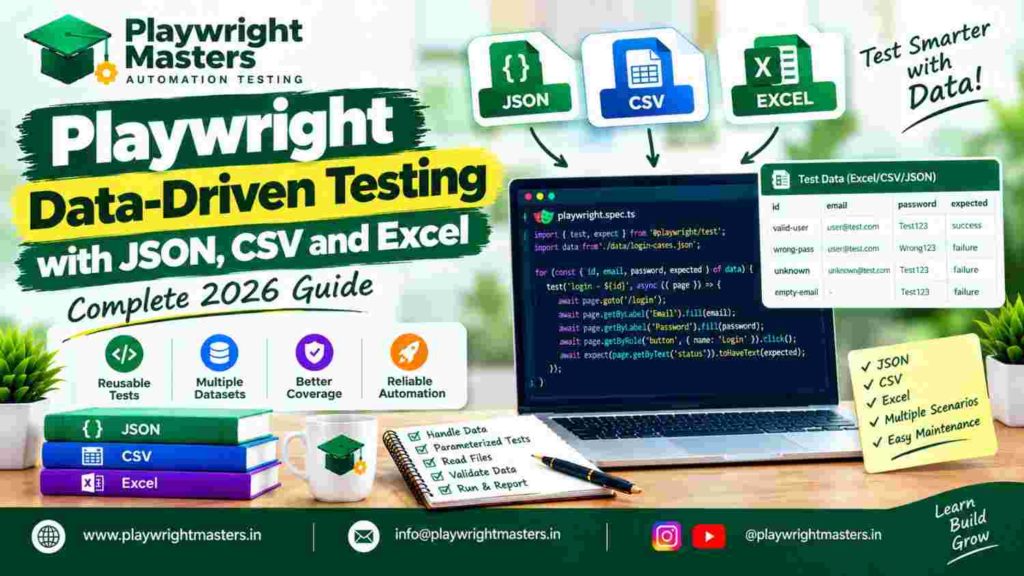
What Is Data-Driven Testing in Playwright?
Data-driven testing means using different input values to execute the same test workflow.
The browser interactions remain similar, but the values and expected outcomes change between scenarios.
Consider a registration page that accepts a name, email address and password.
You may need to check a valid registration, an invalid email, a missing required field, and an existing account.
Instead of rebuilding the entire test for each case, you can describe those cases as data.
Scenario | Input condition | Expected outcome |
Valid registration | All required details valid | Registration succeeds |
Invalid email | Email format incorrect | Validation appears |
Missing password | Password omitted | Required-field error |
Existing account | Email already registered | Duplicate-account response |
Each row represents a different expectation.
The purpose of data-driven testing is not simply to execute more tests. It is to cover meaningful variations while keeping test behavior understandable and maintainable.
For broader framework architecture, visit the Playwright Framework Guide.
How Does Playwright Parameterized Testing Work?
Playwright Test allows developers to register multiple tests using datasets available when the test file is evaluated.
A common approach uses a for…of loop to create one test for each data entry.
Each generated test can receive its own title, input values and expected outcome.
Example: Parameterized tests using an array
import { test, expect } from ‘@playwright/test’;
const cases = [
{ value: ‘hello’, expected: ‘hello’ },
{ value: ‘playwright’, expected: ‘playwright’ }
];
for (const item of cases) {
test(`input ${item.value}`, async ({ page }) => {
await page.goto(‘/echo’);
await page.getByLabel(‘Message’).fill(item.value);
await page.getByRole(‘button’, {
name: ‘Submit’
}).click();
await expect(
page.getByTestId(‘result’)
).toHaveText(item.expected);
});
}
This example assumes that the application provides an /echo page and displays the submitted value.
The loop creates separate test cases rather than placing every scenario inside one large test.
Why are separate test cases useful?
Separate cases produce clearer reporting.
If the second dataset fails, the report identifies the affected scenario without requiring you to inspect a long sequence of unrelated inputs.
This also helps with filtering, debugging and rerunning particular tests.
Plan Your Test Data Before Writing Code
The quality of a data-driven test depends on its dataset.
A large file containing hundreds of similar values does not necessarily provide better coverage than a smaller, carefully designed collection.
Start by identifying which business rules require different inputs.
For a login feature, those rules may include accepted credentials, rejected credentials, missing values and account restrictions.
What information should a test dataset contain?
A useful dataset normally needs a unique scenario name, input values and an expected result.
For example:
type LoginCase = {
id: string;
email: string;
password: string;
expectedStatus: ‘accepted’ | ‘rejected’;
};
The id helps identify the scenario.
The expected status describes what the application should do.
Use fictional accounts and safe test-environment credentials. Never include production passwords or customer secrets in source-controlled test data.
How to Perform Data-Driven Testing with JSON
JSON is a lightweight text format that stores information as objects and arrays.
It is particularly useful when test cases contain multiple fields, nested information or different expected results.
Step 1: Create a JSON data file
Create test-data/login-cases.json:
[
{
“id”: “valid-user”,
“email”: “valid@example.test”,
“password”: “TestPassword123”,
“expectedStatus”: “accepted”
},
{
“id”: “wrong-password”,
“email”: “valid@example.test”,
“password”: “WrongPassword”,
“expectedStatus”: “rejected”
},
{
“id”: “unknown-user”,
“email”: “missing@example.test”,
“password”: “TestPassword123”,
“expectedStatus”: “rejected”
}
]
The data is illustrative. A working application must have matching test accounts or controlled responses.
Step 2: Load JSON into Playwright
Create tests/login-json.spec.ts:
import { test, expect } from ‘@playwright/test’;
import { readFileSync } from ‘node:fs’;
import { join } from ‘node:path’;
type LoginCase = {
id: string;
email: string;
password: string;
expectedStatus: ‘accepted’ | ‘rejected’;
};
const path = join(
process.cwd(),
‘test-data’,
‘login-cases.json’
);
const cases = JSON.parse(
readFileSync(path, ‘utf8’)
) as LoginCase[];
for (const item of cases) {
test(item.id, async ({ page }) => {
await page.goto(‘/login’);
await page.getByLabel(‘Email’).fill(item.email);
await page.getByLabel(‘Password’).fill(item.password);
await page.getByRole(‘button’, {
name: ‘Sign in’
}).click();
if (item.expectedStatus === ‘accepted’) {
await expect(page).toHaveURL(/dashboard/);
} else {
await expect(
page.getByRole(‘alert’)
).toContainText(‘Invalid credentials’);
}
});
}
This example assumes that successful login opens a dashboard and rejected login displays the specified alert.
Configure baseURL in Playwright before using relative page addresses.
Step 3: Run the JSON tests
npx playwright test tests/login-json.spec.ts
Playwright registers one test for each JSON object.
When should you use JSON test data?
JSON works well when developers manage the datasets and need structured values such as arrays, objects, flags and expected outcomes.
It is generally easier to maintain in a code repository than a workbook when changes need to be reviewed through Git.
However, TypeScript’s as LoginCase[] does not validate JSON contents at runtime. Add explicit validation before trusting values loaded from external files.
How to Perform Playwright Data-Driven Testing with CSV
CSV stands for Comma-Separated Values.
It stores information in rows and columns, making it useful for simple datasets that testers may edit using spreadsheet applications.
For example, a search feature may require testing several search terms and expected responses.
Step 1: Create the CSV dataset
Create test-data/search-cases.csv:
id,query,expectedText
known-product,Notebook,Notebook
missing-product,xyz-no-match,No results
special-character,@invalid,No results
Each row contains one scenario.
The actual expected messages must match your application.
Step 2: Install a CSV parser
npm install –save-dev csv-parse
Using a proper parser is important because valid CSV fields may contain commas, quotation marks or line breaks.
Step 3: Read CSV rows in Playwright
import { test, expect } from ‘@playwright/test’;
import { readFileSync } from ‘node:fs’;
import { join } from ‘node:path’;
import { parse } from ‘csv-parse/sync’;
type SearchCase = {
id: string;
query: string;
expectedText: string;
};
const csv = readFileSync(
join(process.cwd(), ‘test-data’, ‘search-cases.csv’),
‘utf8’
);
const cases = parse(csv, {
columns: true,
skip_empty_lines: true,
trim: true
}) as SearchCase[];
for (const item of cases) {
test(`search: ${item.id}`, async ({ page }) => {
await page.goto(‘/search’);
await page.getByRole(‘searchbox’)
.fill(item.query);
await page.getByRole(‘button’, {
name: ‘Search’
}).click();
await expect(
page.getByTestId(‘search-feedback’)
).toContainText(item.expectedText);
});
}
This example assumes a search page with accessible controls and a testable feedback element.
How does CSV parameterization work?
The CSV parser converts each row into an object whose property names come from the column headings.
The loop then registers one Playwright test for each object.
A scenario identifier makes it easier to understand which data row caused a failure.
What CSV mistakes should you prevent?
Check that column names match the properties used in code.
Do not manually split complex CSV records using split(‘,’), because commas can also appear inside properly quoted fields.
Validate missing values according to the scenario. An empty field may represent a legitimate negative test rather than corrupted data.
How to Perform Playwright Data-Driven Testing with Excel
Excel is useful when test cases are maintained by a QA team or business users who prefer spreadsheets.
An Excel workbook can contain multiple worksheets and organized test data.
Playwright Test does not provide a dedicated Excel-reading API. A Node.js spreadsheet library can load the workbook before tests are registered.
Step 1: Install ExcelJS
This example uses ExcelJS:
npm install –save-dev exceljs
Step 2: Prepare the workbook
Create test-data/registration-cases.xlsx.
Add a worksheet named Registration containing:
id | expectedStatus | |
valid-email | user@example.test | accepted |
invalid-email | wrong-email | rejected |
empty-email | rejected |
Keep the headings consistent with your code.
Step 3: Read Excel rows
import { test, expect } from ‘@playwright/test’;
import ExcelJS from ‘exceljs’;
import { join } from ‘node:path’;
type RegistrationCase = {
id: string;
email: string;
expectedStatus: string;
};
const workbook = new ExcelJS.Workbook();
await workbook.xlsx.readFile(
join(process.cwd(), ‘test-data’, ‘registration-cases.xlsx’)
);
const sheet = workbook.getWorksheet(‘Registration’);
if (!sheet) {
throw new Error(‘Registration worksheet is missing’);
}
const cases: RegistrationCase[] = [];
sheet.eachRow((row, number) => {
if (number === 1) return;
const value = (column: number) =>
String(row.getCell(column).value ?? ”);
cases.push({
id: value(1),
email: value(2),
expectedStatus: value(3)
});
});
This example reads simple text values from the first three columns.
It is not intended to handle every possible Excel cell type. Dates, formulas, rich text and hyperlinks may need special handling.
Step 4: Generate Playwright tests from Excel
for (const item of cases) {
test(`registration: ${item.id}`, async ({ page }) => {
await page.goto(‘/register’);
await page.getByLabel(‘Email’).fill(item.email);
await page.getByRole(‘button’, {
name: ‘Register’
}).click();
if (item.expectedStatus === ‘accepted’) {
await expect(
page.getByTestId(‘registration-result’)
).toHaveText(‘Registered’);
} else {
await expect(
page.getByRole(‘alert’)
).toBeVisible();
}
});
}
The expected interface and results are examples. Adapt them to your application.
What is important when reading Excel files?
Read the correct worksheet, validate column headings and confirm required rows exist.
Do not assume Excel dates or numeric values always appear as strings.
If a test depends on formulas, understand whether the spreadsheet file contains calculated results. ExcelJS reads stored values but does not serve as a full spreadsheet calculation engine.
For straightforward structured test data, JSON may require less maintenance than Excel.
JSON vs CSV vs Excel: Which Format Should You Choose?
The best test-data format depends on the complexity of the information and who maintains it.
Requirement | JSON | CSV | Excel |
Structured objects | Excellent | Limited | Requires mapping |
Simple tables | Good | Excellent | Excellent |
Nested data | Supported | Awkward | More complicated |
Git-friendly editing | Excellent | Excellent | Less convenient |
Non-developer editing | Moderate | Good | Excellent |
Multiple worksheets | No | No | Yes |
Dedicated parsing package | Not usually | Recommended | Required |
Which format is best for beginners?
Start with a TypeScript array to understand parameterized tests.
Move to JSON when you want to separate data from test code.
Use CSV when records are naturally tabular and Excel when an existing team workflow depends on workbooks.
There is no technical requirement to use Excel simply because the test suite contains many cases.
The easiest-to-maintain format is usually the better choice.
Validate External Test Data Before Running Tests
External files can contain missing values, duplicate names, incorrect types or unsupported expected results.
These issues may cause confusing test failures that look like application bugs.
Data validation means checking whether a dataset follows the rules required by the test before browser execution begins.
Example: Validate login cases
type LoginCase = {
id: string;
email: string;
password: string;
expectedStatus: ‘accepted’ | ‘rejected’;
};
function validateCases(data: LoginCase[]) {
if (!Array.isArray(data) || data.length === 0) {
throw new Error(‘No test cases found’);
}
for (const item of data) {
if (!item.id?.trim()) {
throw new Error(‘Missing scenario ID’);
}
if (![‘accepted’, ‘rejected’]
.includes(item.expectedStatus)) {
throw new Error(`Invalid result for ${item.id}`);
}
if (typeof item.email !== ‘string’ ||
typeof item.password !== ‘string’) {
throw new Error(`Invalid fields in ${item.id}`);
}
}
}
Run this immediately after loading the dataset.
A blank email or password may be intentionally supplied for a negative test. Validation should permit values that the scenario is designed to test.
Why is early validation helpful?
It separates incorrect data from application behavior.
Instead of waiting for a browser test to fail with an unclear selector or assertion error, the runner can report which dataset field is invalid.
For larger projects, consider a runtime schema-validation library.
Prevent Duplicate and Misleading Test Cases
Repeated datasets can produce unnecessary executions and make reports harder to interpret.
However, two scenarios using the same email address are not automatically duplicates.
A duplicate should be defined according to the testing purpose.
Example: Check unique scenario identifiers
function checkUniqueIds(data: { id: string }[]) {
const found = new Set<string>();
for (const item of data) {
if (found.has(item.id)) {
throw new Error(`Duplicate ID: ${item.id}`);
}
found.add(item.id);
}
}
Unique IDs help teams locate failed cases in reports and data files.
If two rows intentionally contain similar input values but expect different behavior, preserve both when they represent meaningful scenarios.
Keep Data-Driven Tests Independent
A data-driven test becomes unreliable when one scenario changes something required by another.
Imagine two parallel tests updating the same customer profile.
The first test expects the address to remain unchanged, while the second replaces it.
Either test may fail depending on execution order.
How can you prevent data conflicts?
Use test-specific records when scenarios modify shared application state.
For example, generate a unique account identifier for each case or create separate records through a test API.
A stable external dataset does not guarantee an independent test environment.
This matters especially when Playwright runs tests concurrently.
For reusable resource creation and cleanup, read the Playwright Fixtures Guide. Keep the detailed fixture lifecycle implementation in that article rather than duplicating it here.
Parameterized Tests vs Playwright Fixtures
Parameterized testing and fixtures solve different problems.
Parameterized testing supplies alternative input values or expected outcomes.
A fixture provides a resource or setup dependency needed by a test.
For example, a login dataset may contain several user scenarios.
A fixture may provide the browser page or create the test account used by those scenarios.
When should you combine them?
Combine them when multiple datasets require managed resources.
For example, a fixture can prepare an independent customer record, while parameterized cases test different profile changes against that record.
Do not build a custom fixture merely to read a short JSON file if a simple import or file read already meets your needs.
How to Organize a Data-Driven Playwright Project
A clear project structure keeps test specifications separate from input data and parsing utilities.
Example folder organization
playwright-project/
├── tests/
│ ├── login-json.spec.ts
│ ├── search-csv.spec.ts
│ └── registration-excel.spec.ts
├── test-data/
│ ├── login-cases.json
│ ├── search-cases.csv
│ └── registration-cases.xlsx
├── utils/
│ └── validate-data.ts
├── playwright.config.ts
└── package.json
The tests directory contains browser scenarios.
The test-data directory contains externally maintained inputs.
The utils directory contains reusable operations that do not belong inside individual test cases.
Do you need a universal file reader?
Not necessarily.
A small project with one JSON file may be easier to maintain using direct imports.
A larger suite with several repeated data-reading operations may benefit from a shared utility that returns consistent objects.
Add abstraction when it reduces genuine maintenance effort, not simply to make the architecture look more advanced.
How to Run and Debug Data-Driven Tests
Playwright reports each generated test separately when tests are registered through a loop.
Use descriptive titles so that failed results can be traced back to a dataset.
Run the entire suite
npx playwright test
Run one specification
npx playwright test tests/login-json.spec.ts
Run a named scenario
npx playwright test –grep “wrong-password”
The selected name must match the actual generated test title.
Why are scenario names important?
A report containing Login test 1, Login test 2, and Login test 3 is less helpful than a report identifying the exact input condition.
Use names based on behavior rather than sensitive values.
Avoid including real passwords, tokens or personal information in test titles or logs.
Common Playwright Data-Driven Testing Errors
Data-driven tests add a data-loading step, which creates potential errors beyond normal browser automation.
Error | Likely cause | Recommended solution |
JSON file not found | Incorrect path | Resolve path from a known project location |
JSON parse error | Invalid file syntax | Validate JSON formatting |
CSV property undefined | Header mismatch | Check column names |
Excel sheet missing | Wrong worksheet name | Validate worksheet existence |
Zero tests generated | Empty dataset | Reject empty data before registration |
Duplicate test titles | Repeated scenario IDs | Validate identifiers |
Every case fails | Incorrect shared selector or expectation | Inspect common test logic |
Random parallel failures | Shared mutable account or record | Isolate test data |
Excel value incorrect | Cell type or formula issue | Normalize values explicitly |
How should you troubleshoot a failed dataset?
First verify that the expected data was loaded correctly.
Next confirm that the browser test used the correct values.
Then inspect the actual application result and compare it with the specified expected behavior.
Do not automatically modify the expected result to match the current application output. That can hide a genuine defect.
Best Practices for Reliable Data-Driven Automation
Use data-driven tests only when several meaningful scenarios share the same workflow.
Keep inputs and expected results clearly connected.
Prefer small, understandable datasets over enormous files containing many unreviewed combinations.
Validate dataset structure before registering tests.
Use stable scenario identifiers and independent application state.
Keep secrets in secure configuration rather than ordinary CSV or Excel files.
Review data changes alongside test-code changes.
Remove obsolete scenarios when the underlying application requirements change.
Should every test be data-driven?
No.
A test that verifies one unique behavior may be clearer as an ordinary Playwright test.
Parameterization is most useful when the same sequence of actions needs to be checked against several distinct data conditions.
Use the technique where it improves clarity and coverage.
Frequently Asked Questions About Playwright Data-Driven Testing
1. What is data-driven testing in Playwright?
Data-driven testing in Playwright runs the same testing workflow with different input datasets and expected results. It reduces repeated code and helps test multiple application scenarios consistently.
2. Does Playwright support parameterized tests?
Yes. Playwright Test allows developers to generate multiple test cases from arrays or externally loaded data. Each generated case can have its own title and result.
3. How do I use JSON in Playwright testing?
Create a JSON file containing test scenarios, load it using a supported import or Node.js file operation, validate its structure, and register a test for each dataset.
4. Can Playwright read CSV files?
Yes. Playwright tests run in Node.js and can load CSV files using filesystem APIs and an appropriate CSV parser. The parsed rows can then supply test values.
5. Can Playwright use Excel test data?
Yes. A Node.js spreadsheet-reading package such as ExcelJS can load an Excel workbook and convert worksheet rows into JavaScript objects for Playwright tests.
6. Is JSON better than Excel for Playwright?
JSON is often simpler for developer-maintained structured data. Excel may be preferable when QA or business teams already manage scenarios in spreadsheets. Neither format is best for every project.
7. How do I run the same Playwright test with multiple inputs?
Store inputs in an array or file, then loop through the loaded data and register a separate Playwright test for each scenario.
8. How do I handle empty test data?
Reject an unexpectedly empty dataset before tests are registered. However, allow deliberately empty individual fields when the scenario is testing required-field validation.
9. How do I avoid duplicate parameterized tests?
Assign unique scenario identifiers and check them before registering tests. Also review repeated input combinations to determine whether they represent different requirements.
10. Can parameterized tests run in parallel?
Yes. Independently registered Playwright tests can participate in the runner’s configured parallel execution. Ensure scenarios do not modify the same shared records or accounts unexpectedly.
11. Should expected results be stored in JSON or CSV?
Expected results can be stored alongside inputs when they vary between scenarios. They should be defined from application requirements rather than copied from actual outputs.
12. Why are my Playwright data-driven tests failing?
Typical causes include incorrect file paths, malformed data, missing columns, wrong worksheet names, mismatched selectors and unrealistic expected results. Validate the dataset separately from the browser workflow.
Conclusion: Design Test Data for Meaningful Coverage
Playwright data-driven testing makes it possible to verify several application scenarios without repeating the same browser instructions.
Arrays work well for small examples, JSON supports structured records, CSV suits simple tables, and Excel can support spreadsheet-managed workflows.
The best results come from carefully selected scenarios, validated data, independent execution and assertions that reflect actual requirements.
Data-driven testing improves automation when each dataset verifies a meaningful behavior—not simply when it increases the number of test executions.
Explore the broader Playwright Framework Guide for framework design, or continue with the Playwright Fixtures Guide to understand reusable test resources.
For practical automation education and course information, visit Playwright Masters.

Playwright Masters Team
Playwright Automation Testing Experts | Industry-Focused Training & Practical Learning
Playwright Masters is a dedicated automation testing training platform focused on helping learners build practical skills in Playwright automation testing. Our training covers real-world automation concepts, framework practices, coding, debugging, API testing, cross-browser testing, CI/CD, and interview preparation to help learners develop job-ready testing skills.