
Playwright Projects: Complete Guide to Configuration, Multiple Browsers, Environments & Test Groups
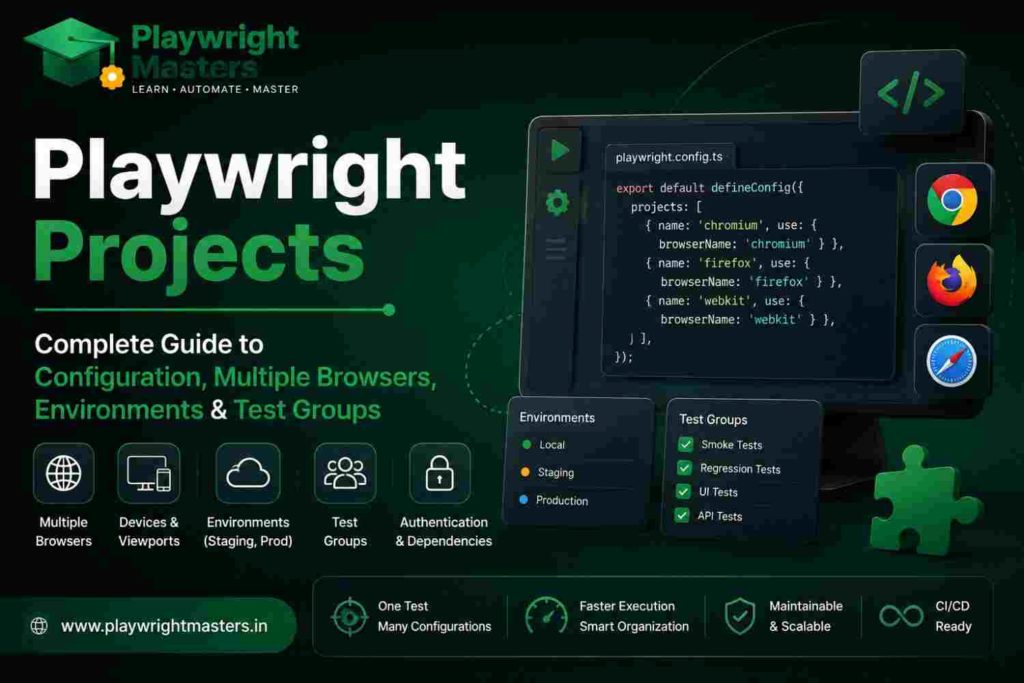
Playwright Projects are named test configurations that allow the same Playwright test suite to run with different browsers, devices, environments, authentication states, test groups and execution settings. They are configured in playwright.config.ts using the projects array and can be selected from the command line with --project.
Table of Contents
ToggleWhat Are Playwright Projects?
Playwright Projects are named configurations that let you run the same Playwright tests with different settings.
For example, you can create separate projects for different types of testing:
- Chromium
- Firefox
- WebKit
- Google Chrome
- Microsoft Edge
- Mobile Chrome
- Mobile Safari
- Staging
- Production
- Smoke tests
- Regression tests
- Logged-in users
- Logged-out users
- Different test groups
- Different authentication states
In simple words:
One Playwright test + multiple project configurations = many different ways to test the same application.
Playwright projects are configured inside the projects section of playwright.config.ts or another supported Playwright configuration file.
This means you do not need to create a separate test file just because you want to test another browser or environment.
If you want to learn Playwright through structured training and practical projects, explore our Playwright Automation Testing Course in Hyderabad.
What Is a Playwright Project?
A Playwright project is a logical group of tests that uses its own configuration.
A project can define settings such as:
- Browser
- Device
- Viewport
- Base URL
- Locale
- Timeouts
- Retries
- Test files
- Authentication state
- Dependencies
- Test matching rules
Playwright officially describes a project as a logical group of tests running with the same configuration.
Why Do We Need Playwright Projects?
Imagine you have a login test:
Login test
↓
Chrome
Firefox
Safari
Mobile Chrome
Mobile Safari
Without projects, you may start creating separate configurations and duplicate work.
With Playwright Projects, the same test can be executed using different configurations.
For example:
login.spec.ts
↓
┌─────┼─────┐
↓ ↓ ↓
Chrome Firefox WebKit
The test code stays the same.
Only the project configuration changes.
This makes the automation framework easier to maintain.
Playwright Projects vs Playwright Test
These two terms are easy to confuse.
Playwright Test
Playwright Test is the test runner and testing framework used to write and execute automated tests.
Playwright Project
A project is a configuration inside Playwright Test.
For example:
Playwright Test
      |
      ├── Chromium Project
      ├── Firefox Project
      ├── WebKit Project
      ├── Mobile Project
      └── Staging Project
So:
Playwright Test runs the tests, while Playwright Projects tell Playwright how and where those tests should run.
Where Are Playwright Projects Configured?
Projects are normally configured inside:
playwright.config.ts
A basic project configuration looks like this:
import { defineConfig } from '@playwright/test';

export default defineConfig({
  projects: [
    {
      name: 'chromium',
      use: {
        browserName: 'chromium',
      },
    },
  ],
});
The projects property is part of Playwright’s test configuration.
Basic Playwright Projects Example
Here is a simple configuration with three browser projects:
import { defineConfig } from '@playwright/test';

export default defineConfig({
  projects: [
    {
      name: 'chromium',
      use: {
        browserName: 'chromium',
      },
    },

    {
      name: 'firefox',
      use: {
        browserName: 'firefox',
      },
    },

    {
      name: 'webkit',
      use: {
        browserName: 'webkit',
      },
    },
  ],
});
Now the same tests can run against:
- Chromium
- Firefox
- WebKit
Playwright supports these browser engines and also supports branded browsers and device emulation through project configuration.
Playwright Projects With Browser Devices
You can make projects easier to manage by using Playwright’s device presets.
Example:
import { defineConfig, devices } from '@playwright/test';

export default defineConfig({
  projects: [
    {
      name: 'Desktop Chrome',
      use: {
        ...devices['Desktop Chrome'],
      },
    },

    {
      name: 'Desktop Firefox',
      use: {
        ...devices['Desktop Firefox'],
      },
    },

    {
      name: 'Desktop Safari',
      use: {
        ...devices['Desktop Safari'],
      },
    },
  ],
});
This lets you reuse Playwright’s predefined device settings instead of manually entering every browser and viewport option.
Playwright Projects for Mobile Testing
Projects are not limited to desktop browsers.
You can create mobile projects.
Example:
import { defineConfig, devices } from '@playwright/test';

export default defineConfig({
  projects: [
    {
      name: 'Mobile Chrome',
      use: {
        ...devices['Pixel 5'],
      },
    },

    {
      name: 'Mobile Safari',
      use: {
        ...devices['iPhone 13'],
      },
    },
  ],
});
This allows you to test responsive web applications using mobile device emulation.
A useful project structure could be:
Desktop Chrome
Desktop Firefox
Desktop Safari
Mobile Chrome
Mobile Safari
Playwright Projects for Google Chrome and Microsoft Edge
Playwright can also use branded browsers.
For example:
import { defineConfig, devices } from '@playwright/test';

export default defineConfig({
  projects: [
    {
      name: 'Google Chrome',
      use: {
        ...devices['Desktop Chrome'],
        channel: 'chrome',
      },
    },

    {
      name: 'Microsoft Edge',
      use: {
        ...devices['Desktop Edge'],
        channel: 'msedge',
      },
    },
  ],
});
This is useful when your application has specific browser compatibility requirements.
How to Run All Playwright Projects
If your configuration contains multiple projects, you can run them with:
npx playwright test
Playwright runs all configured projects by default.
For example:
Running tests…
[chromium] ✓
[firefox] ✓
[webkit] ✓
[mobile-chrome] ✓
One test suite can therefore cover several configurations.
How to Run One Playwright Project
You do not always need to run every project.
Use:
npx playwright test --project=chromium
For Firefox:
npx playwright test --project=firefox
For WebKit:
npx playwright test --project=webkit
The --project option lets you select specific configured projects.
How to Run Multiple Playwright Projects
You can also select more than one project.
Example:
npx playwright test --project=chromium --project=firefox
This runs the selected projects instead of the complete project list.
Playwright Projects Are Not Only for Browsers
This is one of the most important concepts beginners need to understand.
Many tutorials introduce projects only as a way to test:
Chrome
Firefox
Safari
But Playwright Projects can do much more.
You can use projects for:
1. Different browsers
Chromium
Firefox
WebKit
2. Different devices
Desktop
Mobile
Tablet
3. Different environments
Staging
Production
Development
4. Different test groups
Smoke
Regression
Sanity
5. Different user states
Logged in
Logged out
Admin
Customer
6. Different authentication states
Admin session
User session
Guest session
7. Setup and teardown workflows
A project can depend on another project and can also have teardown behavior.
This is where Playwright Projects become extremely useful for real automation frameworks.
Playwright Projects for Staging and Production
Suppose your application has:
Staging:
https://staging.example.com
Production:
https://example.com
You can create separate projects.
import { defineConfig } from '@playwright/test';

export default defineConfig({
  projects: [
    {
      name: 'staging',
      use: {
        baseURL: 'https://staging.example.com',
      },
      retries: 2,
    },

    {
      name: 'production',
      use: {
        baseURL: 'https://example.com',
      },
      retries: 0,
    },
  ],
});
Now the same test suite can be executed against both environments.
Playwright’s official documentation specifically shows projects being used for different environments with different retry settings.
Why Use Separate Projects for Staging and Production?
Because the two environments may need different settings.
For example:
Setting | Staging | Production |
Base URL | Staging URL | Live URL |
Retries | 2 | 0 |
Test purpose | Release testing | Smoke monitoring |
Test data | Test data | Production-safe data |
Execution | Frequent | Controlled |
This is much cleaner than creating duplicate test files.
Playwright Projects for Smoke and Regression Testing
You can use projects to divide tests by purpose.
For example:
Smoke Tests
Regression Tests
Configuration:
import { defineConfig } from '@playwright/test';

export default defineConfig({
  projects: [
    {
      name: 'Smoke',
      testMatch: /.*smoke.spec.ts/,
      retries: 0,
    },

    {
      name: 'Regression',
      testIgnore: /.*smoke.spec.ts/,
      retries: 2,
    },
  ],
});
The Smoke project runs matching smoke tests.
The Regression project runs the remaining tests.
Playwright officially supports project-level testMatch and testIgnore for this type of test grouping.
What Is testMatch in Playwright Projects?
testMatch tells Playwright which test files belong to a project.
Example:
{
  name: 'Smoke',
  testMatch: '**/*.smoke.spec.ts',
}
Suppose your project contains:
tests/
├── login.smoke.spec.ts
├── checkout.smoke.spec.ts
├── profile.spec.ts
└── search.spec.ts
The Smoke project can select only:
login.smoke.spec.ts
checkout.smoke.spec.ts
This helps teams run only the tests they need.
What Is testIgnore?
testIgnore tells Playwright which tests should not belong to a project.
Example:
{
  name: 'Regression',
  testIgnore: '**/*.smoke.spec.ts',
}
This can prevent Smoke tests from being repeated when running a separate Regression project.
Playwright Projects for Authentication
Authentication is another powerful use case.
Imagine you have:
Admin
Customer
Guest
Each user may need a different authentication state.
You can create projects like:
projects: [
  {
    name: 'admin',
    use: {
      storageState: 'playwright/.auth/admin.json',
    },
  },

  {
    name: 'customer',
    use: {
      storageState: 'playwright/.auth/customer.json',
    },
  },
]
Now tests can run with different login states.
This is especially useful for applications containing:
- Admin dashboards
- Customer portals
- Employee portals
- Banking applications
- E-commerce applications
- SaaS applications
Project-level configuration can override shared use settings, including options such as locale and authentication-related configuration.
Playwright Projects With Dependencies
Sometimes one project must finish before another project starts.
For example:
Setup
↓
Login
↓
Application Tests
You can create project dependencies.
Example:
import { defineConfig } from '@playwright/test';

export default defineConfig({
  projects: [
    {
      name: 'setup',
      testMatch: '**/*.setup.ts',
    },

    {
      name: 'chromium',
      use: {
        browserName: 'chromium',
      },
      dependencies: ['setup'],
    },

    {
      name: 'firefox',
      use: {
        browserName: 'firefox',
      },
      dependencies: ['setup'],
    },
  ],
});
The setup project runs first.
If setup succeeds, the dependent projects can run.
If the dependency fails, dependent projects are not run.
Playwright’s documentation recommends project dependencies for setup workflows because setup tests can participate in reporting and tracing.
What Is a Playwright Project Dependency?
A dependency means:
Project B must wait for Project A.
Example:
Database Setup
↓
Authentication Setup
↓
E2E Tests
This is useful when your automation needs preparation before the main tests begin.
Playwright Project Teardown
Playwright also supports teardown for setup projects.
Think of teardown as cleanup.
Example:
Setup
↓
Run tests
↓
Teardown
You can use teardown to clean up test data or other resources after dependent projects finish.
Playwright Projects and Shared Configuration
You do not have to repeat every configuration option in every project.
You can define common settings globally.
Example:
import { defineConfig } from '@playwright/test';

export default defineConfig({
  timeout: 30000,

  use: {
    trace: 'on-first-retry',
    screenshot: 'only-on-failure',
  },

  projects: [
    {
      name: 'chromium',
      use: {
        browserName: 'chromium',
      },
    },

    {
      name: 'firefox',
      use: {
        browserName: 'firefox',
      },
    },
  ],
});
The global settings can be shared, while project-specific settings override them when needed.
Playwright supports configuration at multiple levels: global, project, and test.
Project-Level use Configuration
The use section controls how the browser and test environment behave.
You can configure project-specific options such as:
- Browser
- Device
- Viewport
- Base URL
- Locale
- Storage state
- Permissions
- Timeouts
- Other supported Playwright options
Example:
{
  name: 'mobile',
  use: {
    ...devices['Pixel 5'],
    locale: 'en-US',
  },
}
This means the Mobile project can have settings that are different from the rest of the test suite.
Playwright Projects for Different Languages
Projects can also help organize testing based on application or framework requirements.
However, remember an important distinction:
A Playwright Project is not the same thing as a programming-language project.
Playwright supports multiple programming languages, including:
- JavaScript
- TypeScript
- Python
- Java
- .NET
Projects discussed in playwright.config.ts specifically refer to Playwright Test project configurations.
Playwright Projects Example for a Real E-Commerce Application
Imagine you are testing an e-commerce website.
You might have:
playwright.config.ts
projects:
├── smoke-chrome
├── regression-chrome
├── firefox
├── webkit
├── mobile-chrome
├── staging
└── production-smoke
Your tests could be:
tests/
├── login/
├── product/
├── cart/
├── checkout/
├── payment/
└── profile/
Now you can decide exactly which tests run in each project.
This is much more scalable than creating separate test code for every browser.
A Practical Enterprise Playwright Project Configuration
Here is a more realistic example:
import { defineConfig, devices } from '@playwright/test';

export default defineConfig({

  testDir: './tests',

  timeout: 30_000,

  use: {
    baseURL: 'https://staging.example.com',
    trace: 'on-first-retry',
    screenshot: 'only-on-failure',
  },

  projects: [

    {
      name: 'setup',
      testMatch: '**/*.setup.ts',
    },

    {
      name: 'chromium',
      use: {
        ...devices['Desktop Chrome'],
      },
      dependencies: ['setup'],
    },

    {
      name: 'firefox',
      use: {
        ...devices['Desktop Firefox'],
      },
      dependencies: ['setup'],
    },

    {
      name: 'webkit',
      use: {
        ...devices['Desktop Safari'],
      },
      dependencies: ['setup'],
    },

    {
      name: 'mobile-chrome',
      use: {
        ...devices['Pixel 5'],
      },
      dependencies: ['setup'],
    },

    {
      name: 'smoke',
      testMatch: '**/*.smoke.spec.ts',
      dependencies: ['setup'],
    },

  ],
});
This approach combines several real-world Playwright capabilities:
- Browser testing
- Mobile testing
- Test grouping
- Setup
- Dependencies
- Shared configuration
- Trace collection
Recommended Playwright Project Structure
For a growing automation framework, you can organize your repository like this:
playwright-project/
│
├── tests/
│ ├── auth/
│ ├── smoke/
│ ├── regression/
│ ├── api/
│ └── setup/
│
├── pages/
│ ├── LoginPage.ts
│ ├── HomePage.ts
│ └── CheckoutPage.ts
│
├── fixtures/
│
├── test-data/
│
├── playwright.config.ts
│
├── package.json
│
└── README.md
Projects then control which parts of the test suite are executed and under which configuration.
Playwright Projects vs Separate Configuration Files
A common beginner question is:
Should I create one configuration file for Chrome and another for Firefox?
Usually, you do not need to.
Projects allow multiple configurations inside the same Playwright configuration.
Instead of:
chrome.config.ts
firefox.config.ts
webkit.config.ts
you can have:
playwright.config.ts
with:
projects:
  ├── chromium
  ├── firefox
  └── webkit
This keeps the automation framework easier to understand and maintain.
Why Playwright Projects Reduce Code Duplication
Suppose you have 100 tests.
Without projects, you might be tempted to create:
100 Chrome tests
100 Firefox tests
100 Safari tests
That can create unnecessary duplication.
With projects:
100 tests
↓
Chrome Project
Firefox Project
Safari Project
The same tests can be executed under different configurations.
This is one of the major reasons Playwright Projects are useful for cross-browser automation.
Playwright Projects and Parallel Execution
When multiple independent projects are configured, Playwright can execute them in parallel, subject to the configured worker limits.
For example:
Chromium ────────┐
Firefox ─────────┼── Run
WebKit ──────────┘
Parallel execution can reduce total test execution time.
However, teams should still consider:
- CI machine capacity
- Test data conflicts
- Environment limits
- Database load
- API rate limits
- Worker configuration
Do not simply create dozens of projects without considering the infrastructure behind them.
Playwright Projects in CI/CD
Projects become even more useful in CI/CD pipelines.
For example:
Pull Request
Run:
npx playwright test --project=smoke
Nightly Build
Run:
npx playwright test
Browser Compatibility Job
Run:
npx playwright test \
  --project=chromium \
  --project=firefox \
  --project=webkit
This gives teams a practical way to balance fast feedback with wider browser coverage.
Playwright’s CLI supports selecting projects with --project.
Playwright Projects in GitHub Actions
A simple CI workflow could execute a selected project:
– name: Run Playwright Smoke Tests
run: npx playwright test --project=smoke
You can create separate CI jobs for different projects if your team needs different execution schedules.
For example:
Pull Request
↓
Smoke Project
↓
Fast Feedback
Nightly
↓
Regression Projects
↓
Full Browser Coverage
This is often more efficient than running every test after every small code change.
Playwright Projects in VS Code
If you use the Playwright VS Code extension, projects appear in the Playwright testing sidebar.
You can select projects and run tests against the desired configurations.
Playwright’s VS Code documentation describes projects as different browser configurations and explains how to select multiple projects from the sidebar.
This is especially helpful for beginners because you can see project names instead of remembering every CLI command.
Playwright Projects and UI Mode
Playwright UI Mode also lets you filter and work with tests by project.
Run:
npx playwright test --ui
UI Mode provides a visual interface for exploring, running and debugging tests, including filtering by projects.
This makes it easier to understand a large automation suite.
Playwright Projects and Debugging
Suppose a test passes in Chromium but fails in WebKit.
You can run only WebKit:
npx playwright test --project=webkit
Then debug that project separately.
You can also use:
npx playwright test --ui
or headed execution:
npx playwright test --headed --project=webkit
This reduces the amount of output you need to inspect.
Playwright Projects and Retries
Different projects can have different retry policies.
Example:
projects: [
  {
    name: 'staging',
    retries: 2,
  },

  {
    name: 'production',
    retries: 0,
  },
]
This can be useful when staging is more likely to experience temporary failures while production monitoring needs a stricter signal.
But retries should not be used to hide genuinely flaky tests.
Playwright Projects and Timeouts
Projects can also have different timeout requirements.
Example:
projects: [
  {
    name: 'fast-tests',
    timeout: 15000,
  },

  {
    name: 'slow-tests',
    timeout: 60000,
  },
]
Use different timeouts only when there is a real reason.
A very large timeout can make failures harder to detect quickly.
Playwright Projects for Locale Testing
You can create projects for different languages or regions.
Example:
projects: [
  {
    name: 'English',
    use: {
      locale: 'en-US',
    },
  },

  {
    name: 'German',
    use: {
      locale: 'de-DE',
    },
  },

  {
    name: 'French',
    use: {
      locale: 'fr-FR',
    },
  },
]
This can help test internationalized applications.
You can validate:
- Language
- Date format
- Currency
- Number format
- Localized content
- Regional behavior
Playwright Projects for Different User Roles
A SaaS application might contain:
Admin
Manager
Employee
Customer
You can create projects around these roles when their authentication or test configuration differs.
Example:
projects: [
  {
    name: 'admin',
    use: {
      storageState: 'playwright/.auth/admin.json',
    },
  },

  {
    name: 'customer',
    use: {
      storageState: 'playwright/.auth/customer.json',
    },
  },
]
This can make role-based testing much easier to manage
Playwright Projects for Smoke, Regression and Sanity Testing
A professional test suite can use projects such as:
Smoke
Sanity
Regression
Full
Example:
projects: [
  {
    name: 'smoke',
    testMatch: '**/smoke/**/*.spec.ts',
  },

  {
    name: 'sanity',
    testMatch: '**/sanity/**/*.spec.ts',
  },

  {
    name: 'regression',
    testMatch: '**/regression/**/*.spec.ts',
  },
]
Then CI can run the correct test group for each workflow.
How to Choose the Right Playwright Projects
Do not create projects just because Playwright allows you to.
Create a project when you have a meaningful difference in:
Browser
Example:
Chromium
Firefox
WebKit
Device
Example:
Desktop
Mobile
Tablet
Environment
Example:
Staging
Production
Test purpose
Example:
Smoke
Regression
User state
Example:
Admin
Customer
Guest
Authentication
Example:
Logged in
Logged out
Execution workflow
Example:
Pull Request
Nightly
Release
Common Mistakes When Using Playwright Projects
Mistake 1: Creating a project for everything
More projects do not automatically mean a better framework.
Create projects around real testing needs.
Mistake 2: Duplicating test code
Do not create:
login-chrome.spec.ts
login-firefox.spec.ts
login-webkit.spec.ts
just because you want cross-browser testing.
Prefer one test and multiple projects where appropriate.
Mistake 3: Using unclear project names
Avoid:
project1
project2
test123
browser-test
Prefer:
chromium
firefox
webkit
mobile-chrome
smoke
regression
staging
production
Clear names make reports easier to understand.
Mistake 4: Ignoring test data conflicts
If multiple projects run simultaneously, they may modify the same test data.
For example:
Chrome → updates customer
Firefox → updates same customer
WebKit → deletes same customer
This can create false failures.
Use isolated or carefully designed test data.
Mistake 5: Using retries to hide flaky tests
If a test fails randomly, investigate the root cause.
Do not depend on:
retries: 5
to make the test look stable.
Best Practices for Playwright Projects
1. Give every project a clear purpose
A project should answer:
Why does this configuration exist?
2. Keep common configuration global
Do not repeat identical settings unnecessarily.
3. Use project-specific settings only where needed
This makes the configuration easier to maintain.
4. Use descriptive project names
Names should make sense in reports and CI logs.
5. Use projects for meaningful test groups
Smoke and regression are good examples.
6. Use dependencies for real setup requirements
Do not create unnecessary dependency chains.
7. Keep authentication states isolated
Different roles should have appropriate authentication data.
8. Use CI strategically
Use quick test projects for pull requests, and reserve full test suites for scheduled runs and release pipelines.
9. Monitor parallel execution
More workers can increase speed, but excessive parallelism can overload test environments.
10. Keep the configuration readable
A complicated configuration is difficult for the whole team to maintain.
A complicated configuration is difficult for the whole team to maintain.
Playwright Projects: Real-World Example
Suppose you work for an e-commerce company.
Your application supports:
- Desktop Chrome
- Firefox
- Safari
- Mobile users
- Admin users
- Customers
Your framework could contain:
Projects
│
├── setup
│
├── chromium
│
├── firefox
│
├── webkit
│
├── mobile-chrome
│
├── customer
│
├── admin
│
├── smoke
│
└── regression
Your CI pipeline could then use:
Pull Request
↓
Smoke
↓
Chromium
Nightly
↓
Regression
↓
Chromium + Firefox + WebKit
Release
↓
Full Suite
↓
Desktop + Mobile
This is a much more realistic way to use Playwright Projects than simply creating three browser entries.
Playwright Projects Cheat Sheet
Requirement | Project Feature |
Test Chrome | browserName / device configuration |
Test Firefox | browserName / device configuration |
Test Safari engine | WebKit project |
Test mobile | Device project |
Test staging | baseURL |
Test production | baseURL |
Run Smoke tests | testMatch |
Exclude tests | testIgnore |
Different login | storageState |
Setup before tests | dependencies |
Cleanup after tests | teardown |
Different retries | Project retries |
Different timeout | Project timeout |
Different locale | Project use.locale |
Run one project | --project |
Run multiple projects | Multiple --project options |
Visual execution | UI Mode |
Playwright Projects vs Browser Context
These are different concepts.
Browser
Represents the browser engine.
Example:
Chromium
Firefox
WebKit
Browser Context
Represents an isolated browser session.
For example:
User A Context
User B Context
Project
Defines how tests should be configured and executed.
Think of it like this:
Project
↓
Browser configuration
↓
Browser
↓
Browser Context
↓
Page
↓
Test
Understanding this hierarchy makes Playwright much easier to learn.
Playwright Projects vs Fixtures
Projects and fixtures solve different problems.
Projects
Control test configuration.
Fixtures
Provide reusable test setup and objects.
For example:
Project
↓
Defines browser/environment
↓
Fixture
↓
Provides page/login/helper
↓
Test
You may use both together in a professional framework.
How Playwright Projects Help Automation Engineers
Playwright Projects are valuable because they help engineers:
- Reduce duplicate test code
- Improve cross-browser coverage
- Organize large test suites
- Separate test environments
- Manage authentication states
- Control test execution
- Create CI/CD workflows
- Run focused test groups
- Support mobile testing
- Improve framework scalability
This is why understanding projects is an important Playwright skill for automation engineers.
Playwright Projects: Beginner Learning Path
If you are new to Playwright, learn Projects in this order:
Step 1
Learn Playwright installation.
Step 2
Write a basic test.
Step 3
Understand playwright.config.ts.
Step 4
Create a Chromium project.
Step 5
Add Firefox and WebKit.
Step 6
Learn mobile projects.
Step 7
Learn testMatch.
Step 8
Learn testIgnore.
Step 9
Learn project-level use.
Step 10
Learn authentication projects.
Step 11
Learn project dependencies.
Step 12
Use projects in CI/CD.
This progression takes you from beginner-level configuration to real automation framework design.
Before starting real-time Playwright projects, it is important to understand the complete set of concepts you need to learn and practice. Check our Playwright Syllabus to see the topics covered in Playwright automation testing and plan your learning before working on projects.
Final Takeaway
Playwright Projects are much more than a way to run tests in Chrome, Firefox and Safari.
They provide a structured way to define different test configurations inside one Playwright test framework.
You can use them for:
Browsers
↓
Devices
↓
Environments
↓
Test Groups
↓
Authentication
↓
User Roles
↓
Setup & Teardown
↓
CI/CD
The most important idea to remember is:
One test suite can be reused across many configurations without duplicating the test code.
That makes Playwright Projects especially useful when your automation framework grows from a few beginner tests into a large enterprise test suite.
If you are learning Playwright for an automation testing career, do not stop at browser configuration. Learn how projects work with Page Object Model, fixtures, authentication, API testing, CI/CD, reporting, parallel execution and real-world framework architecture
Ready to build real-world Playwright automation skills? Explore our Playwright Automation Testing Course in Hyderabad and follow a structured learning path.
Frequently Asked Questions About Playwright Projects
What is a Playwright Project?
A Playwright Project is a logical group of tests that runs with a specific configuration.
Why are Playwright Projects used?
They are used to run tests with different browsers, devices, environments, user states, test groups and other configurations.
Where are Playwright Projects configured?
These settings are defined in the Playwright configuration file, usually named playwright.config.ts.
How do I create a Playwright Project?
Add a project object inside the projects array.
Example:
projects: [
  {
    name: 'chromium',
    use: {
      browserName: 'chromium',
    },
  },
]
How do I run a specific Playwright Project?
Use:
npx playwright test --project=chromium
Can Playwright Projects test multiple browsers?
Yes.
A Playwright Project lets you define the browser, device, and other test settings for each test run, including Chromium, Firefox, WebKit, and branded browsers.
Can the Same Test Be Used Across Multiple Playwright Projects?
Yes. The same test files can run in different Playwright Projects, with each project using its own configuration and settings..
Can Playwright Projects be used for mobile testing?
Yes.
You can use Playwright device presets to create mobile and tablet projects.
Can Playwright Projects be used for staging and production?
Yes.
Different projects can use different baseURL values and other environment-specific settings.
Can Playwright Projects Support Both Smoke and Regression Testing?
Yes.
You can use testMatch and testIgnore to divide tests into different project groups.
Can Playwright Projects use different authentication states?
Yes.
Project-level configuration can specify different storageState files for different authenticated users or roles.
Can Playwright Projects depend on other projects?
Yes.
The dependencies property lets one project wait for another project to complete successfully.
Do Playwright Projects require separate test files?
No.
Projects allow you to run the same tests with different configurations.
Can I run multiple projects from the command line?
Yes.
For example:
npx playwright test --project=chromium --project=firefox
Do Playwright Projects improve test execution speed?
Projects let you execute the same tests using different settings and configurations.
Playwright Masters Team
Playwright Automation Testing Experts | Industry-Focused Training & Practical Learning
Playwright Masters is a dedicated automation testing training platform focused on helping learners build practical skills in Playwright automation testing. Our training covers real-world automation concepts, framework practices, coding, debugging, API testing, cross-browser testing, CI/CD, and interview preparation to help learners develop job-ready testing skills.